
Overview
The Capacity Management Studio in AIZOPlan enables accurate allocation of resources by tracking both billable and non-billable efforts using point-based estimates.
- Allocate Non-Billable distribution
Assign a daily portion of each resource’s capacity in points to non-billable activities such as training, internal meetings, or support.). This ensures a realistic view of actual availability. - Assign Billable Workload
Distribute billable workload in points across project workstreams during a sprint, reflecting the actual contribution of each resource.
Note : It is recommended to update resource allocations at the end of Project sprint to ensure accurate tracking and reporting.
Note : A sprint must be open to allow allocation. Once a sprint is closed, no further updates can be made.
📌Access Resource Capacity Allocation
- In your Program Office, click the Capacity Management Studio icon
 .
.
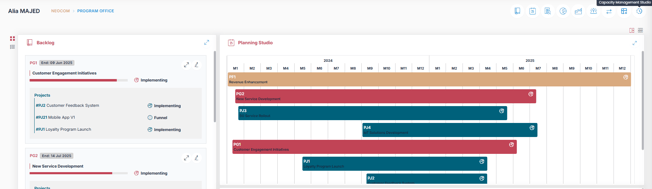
- Select the Resource Capacity Allocation section to begin.
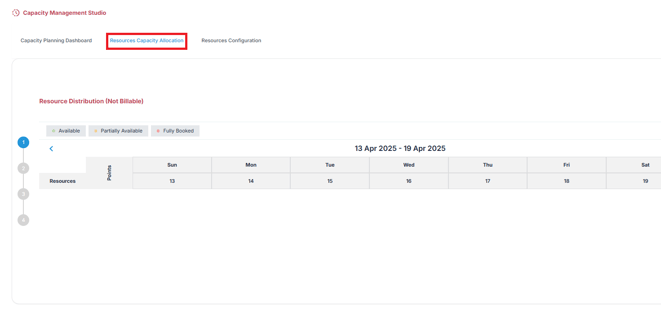
🚀Proceed with Resource Allocation
Step1-Resource Distribution (Non Billable) :
Allocate a daily percentage of each resource’s time to non-billable activities such as Internal meetings, Support tasks, Training sessions ...
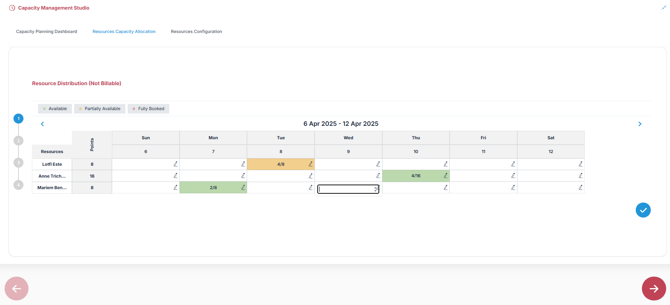
To allocate non-billable time:
- Select the day on the calendar.
- Click the edit icon
 next to the resource to enter the number of non-billable points.
Note: The total available points per resource are displayed next to their name.
- Repeat the process for each resource as needed.
- Click
 to save and proceed.
Click Next  to go the the next step.
Step 2 – Workload Allocation (Billable)
Assign billable work effort to project workstreams during a sprint.
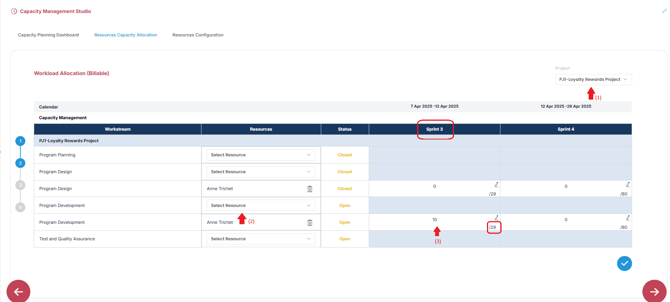
To allocate billable workload:
-
Select a project from the list. (1)
-
Choose the relevant sprint from the column.
-
Select the resource (2) you want to assign to a specific workstream.
-
Click the edit icon
next to the resource to enter the number of points delivered (3) during the sprint.Note: The total number of points planned for the workstream during the sprint is displayed in the corresponding cell.
Note : Points are allocated based on estimates defined per workstream in the Implementation Plan.
-
Repeat the process for each applicable resource.
- Click
 to save and proceed.
 to go the the next step.
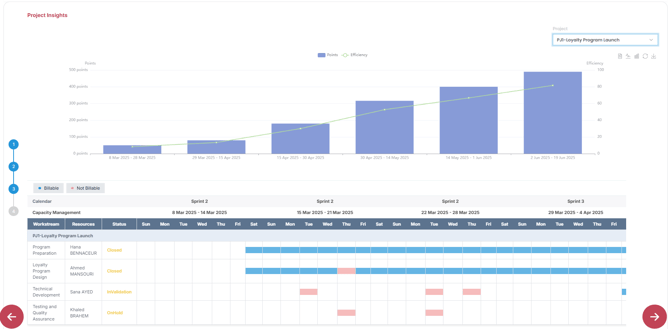
Step3-Project Insights
AIZOPlan generate project-level efficiency graphs, helping visualize how actual work compares to planned workloads.
- Select a project from the list
- Efficiency is calculated by comparing actual points delivered versus planned points during the sprint
Click Next to go the the next step.
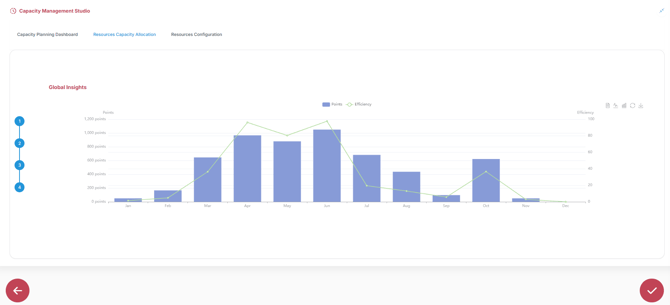
Step4-Global Insights
View consolidated efficiency across all projects:
- AIZOPlan displays aggregated data to show how actual delivery compares to planned workloads across the program
✅ Summary
Resource Allocation in AIZOPlan ensures accurate tracking of both billable and non-billable efforts using a point-based system. Through the Capacity Management Studio, you can:
-
Allocate daily non-billable effort for tasks like meetings, training, or support
-
Assign billable workload to project workstreams based on sprint estimates
-
Visualize project-level and global efficiency to track performance against planned work
By regularly updating allocations at the end of each sprint, teams gain precise insight into capacity utilization and resource contribution.