
Overview
Resource configuration is the foundation of capacity planning.It involves the following key steps:
- Define Resource Categories
Add and classify your resources as People or Material, ensuring accurate segmentation. - Set Skills
Define the technical and functional competencies associated with human resources for skill-based planning and allocation. - Add People Resources
Create individual resource profiles, including Department,Role,internal or external status,Contract type (full-time/part-time), Cost and billing rates
Note: To set department and roles, they must first be created in the Hierarchy Management section by an AIZOPlan administrator. See step by step in the article : How-to-enter-your-organization-hierarchy-and-roles
- Configure Calendars
Define each resource’s working schedule by setting standard workdays and leave periods.
📌Access Resource Configuration
- From your Program Office, click the Capacity Management Studio icon
 .
.
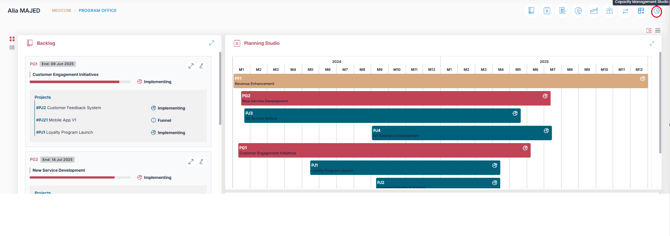
📌SetUp Resource Configuration
- Select the Resource Configuration section to begin the four-step setup process
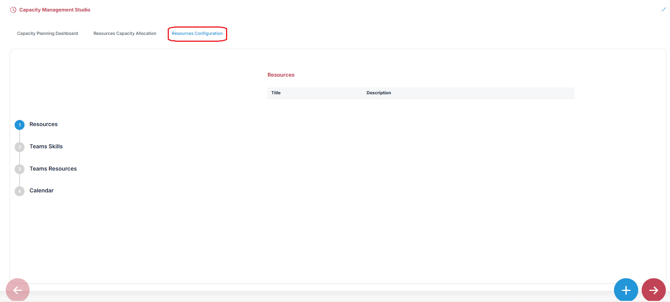
Step1-Define Resource Categories :
Categorize your resources as either People or Material to enable accurate segmentation and tracking.- Click
 to open the "Add Resource" dialog box. Enter a Title and a description for human resources (people) or material resources.
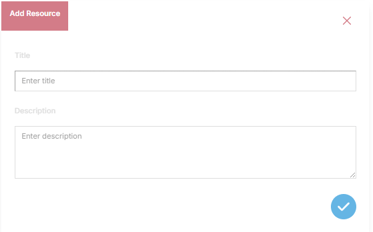
- Click
 to save Resource.
 -
Repeat the process to add additional Resource category.
- You will now see a list of all defined resource types.
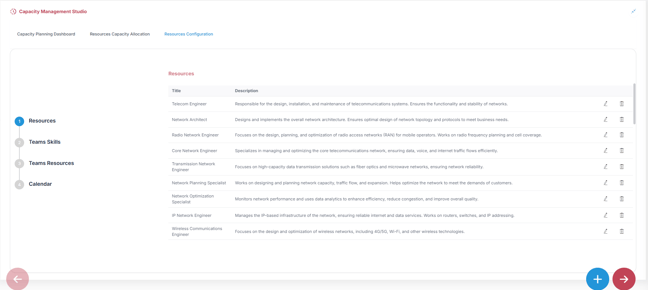
Step2-Setting Team Skills :
Define the technical and functional competencies required for human resources.- Click Next
 to define the competencies or technical skills for human resources
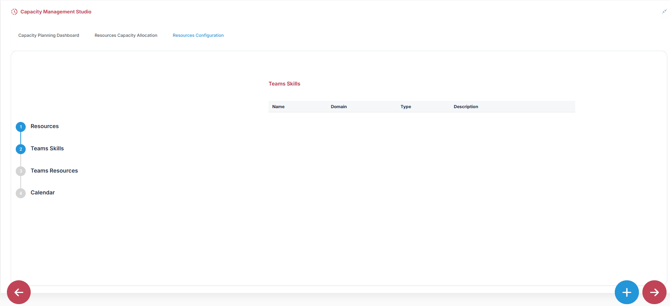
- Click
 to open the "Add Skill" dialog box. Enter a Title, select the domain.
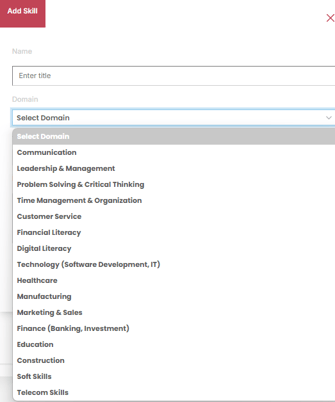
- For each Domain, a list of Skill type is suggested.
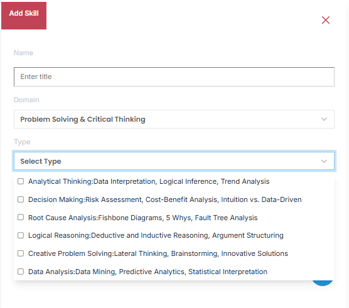
- Click
 to save Skill.
 - repeat to add more skills.
- Your defined skills will be visible in the Team Skills list.
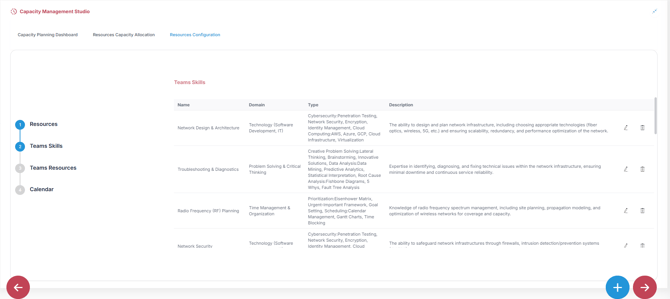
Step3-Adding People Resources :
Create individual profiles for each resource (employee or contractor)- Click Next
 to add people resources
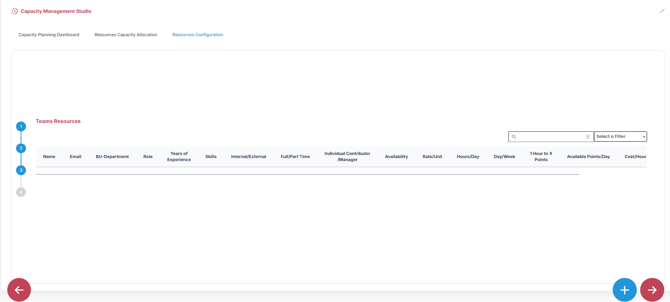
- Click
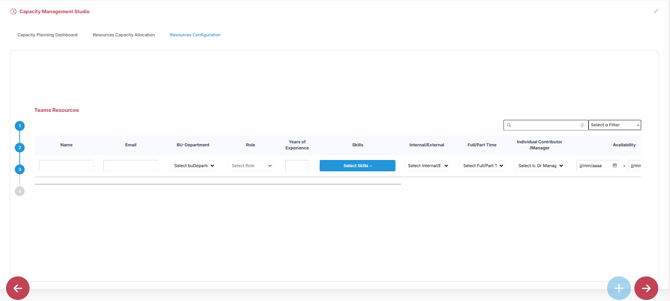
 to add ressources (employee or contractor) fields.
-
- Name : Full name of the resource for identification.
- Email : Resource’s primary email address used for communication and notifications.
- BU-Department : Department the resource belongs to. Select from the predefined list.
- Role : The assigned functional role. Select from the predefined list.
Note : Roles and Departments must first be created in the Hierarchy Management section by an AIZOPlan administrator.
See: : How-to-enter-your-organization-hierarchy-and-roles
-
- Years of Experience : Total professional experience relevant to their role
- Skills : List of competencies or technical skills the resource possesses. Select from the predefined list.
- Internal/External : Specifies whether the resource is part of the organization or an external contractor/vendor.
- Full/Part Time : Indicates if the resource is working full-time or part-time
- Individual contributor/Manager : Identifies whether the resource works independently or manages others.
- Availability : Availability window, especially relevant for external resources or contract-based assignments.
- Rate/Unit : Base rate per billing unit (e.g., per hour or per day), for budgeting and billing purposes
- Hours/Day : Number of working hours per day for this resource.
- Day/Week : Typical number of working days per week. Often 5 for full-time or adjusted for part-time.
- 1 Hour to X Points : Conversion metric for point estimation (used in Agile planning). Defines how many points can be delivered in 1 hour of effort.
- Cost/Hour : cost rate per hour
- Available Points/Day (automatically calculated) : Total number of delivery points the resource can complete per day, based on effort conversion and availability. It is Automatically calculated.
-
- Price (automatically calculated) : billing price for this resource, based on rate and available hours. It is Automatically calculated
- Click
 to save the resource.
 - Repeat the process to add multiple resources
- You see the people Resource list.
Step4-Configuring Calendars :
Set working calendars to accurately reflect each person’s availability.- Click Next to define the working schedule for each people resource, including standard workdays and planned leave periods
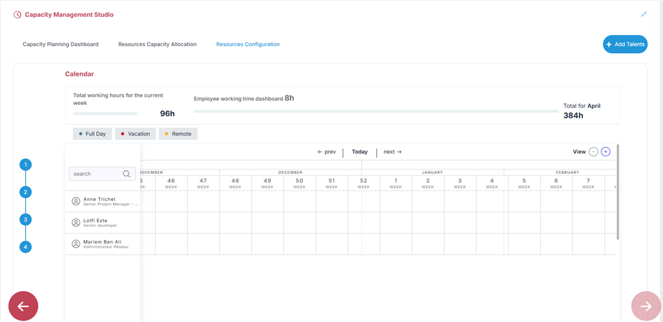
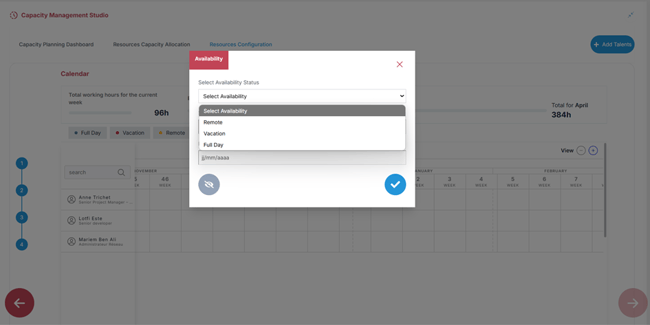
- Select a resource name to open the Availability Status dialog
-
Set the availability status by choosing from options such as Vacation, Remote, or Full Day, and adjust the Start Date and End Date accordingly.
Note: “Full Day” is selected by default to indicate regular working hours unless otherwise specified.
Note: It is recommended to update availability at the beginning of each sprint to ensure accurate tracking and reporting.
✏️Updating Resource Configuration
To modify existing settings:
-
Reopen the Capacity Management Studio
-
Navigate to the relevant configuration step
-
Make any necessary updates and save
✅ Summary
Resource Configuration in AIZOPlan lays the groundwork for effective capacity planning by defining the structure, skills, and availability of your workforce and materials. Using the Capacity Management Studio, you can:
-
Categorize resources as People or Material
-
Define technical and functional skills for role-based planning
-
Create detailed resource profiles including skills,role, cost, and billing rates
-
Configure individual calendars to reflect accurate work schedules
By completing these four steps, you ensure that your program has a solid resource foundation for accurate allocation, tracking, and performance analysis.