
Overview
To grant access to AIZOPlan, an Administrator must add new users and assign appropriate access based on their roles. New users will receive an invitation by email.
In AIZOPlan, a Team can refer to a Project Team or a Collaboration Group, depending on the purpose.
This guide walks you through managing both users and teams.
📌Access "User Management"
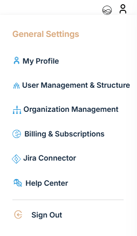
1. In the upper-right corner of your screen, click on Account.
2. Go to General Settings > User Management & Structure.

You will see a list of all current users, including the following details:
- Name
- Email,
- Role,
- Status
- Created at
- Redeemed at
- Actions
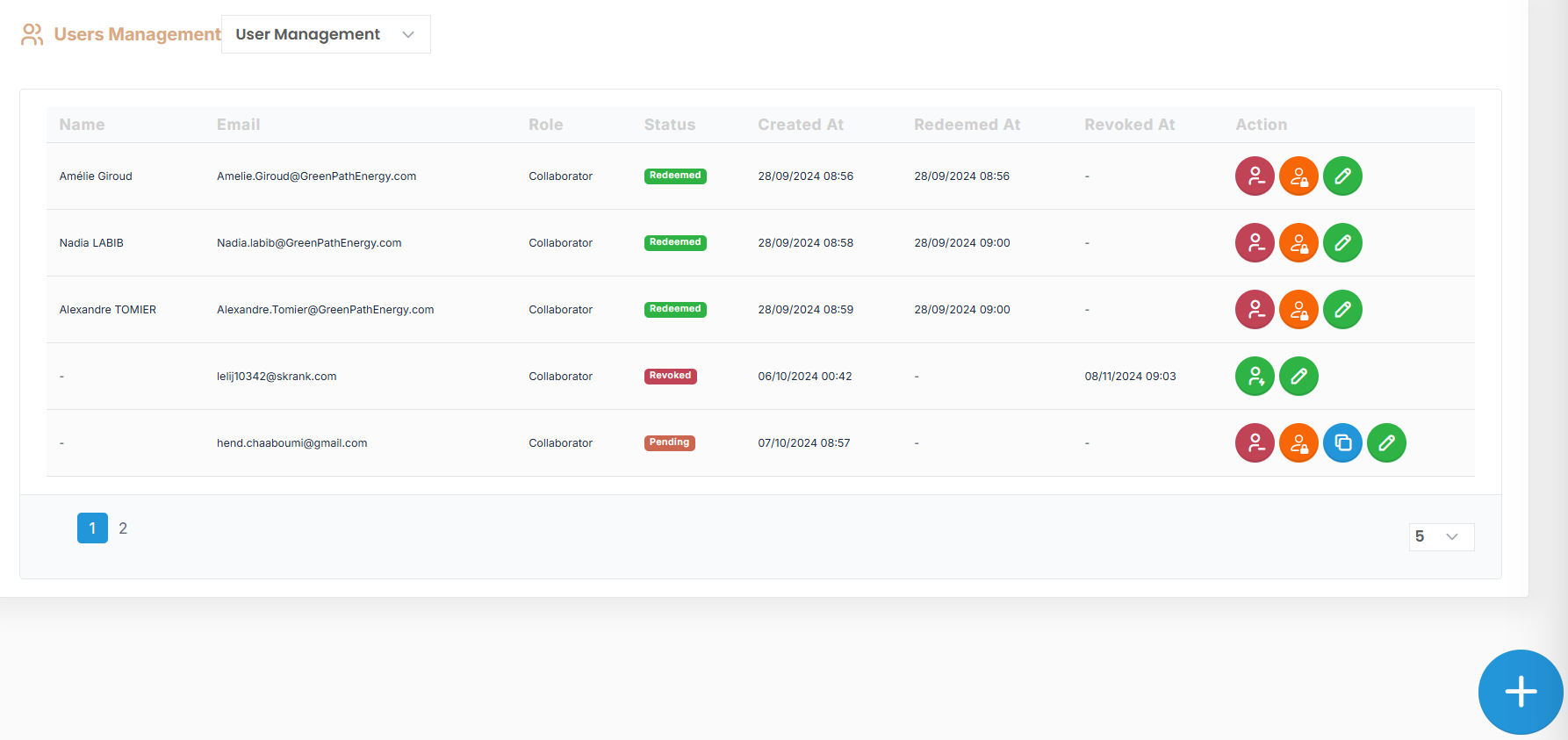
👤User Management actions
-
Add a New user
1. Click
 to open the Invitation User Dialog Box.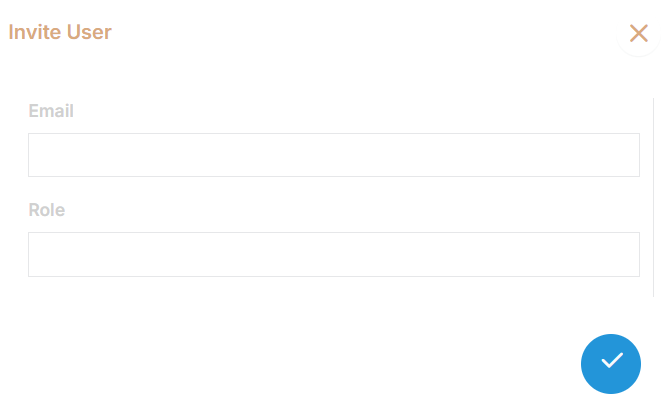
2. Enter the user’s email address and select their role.
3. Click
 to send the invitation.
-
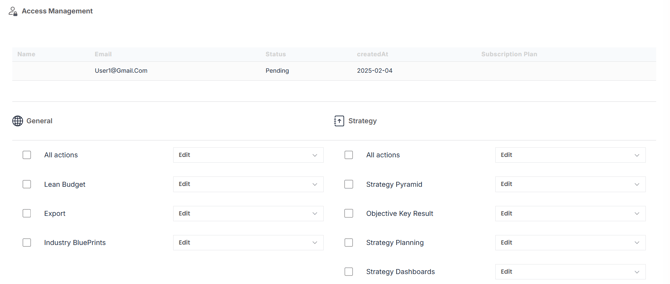
Define User Access
1. Click  next to a user's name
2. In the "Access management view", set the level of access for each module
- Edit,
- View
- Deny
By default, users are granted Edit access.
-
Edit a User
1. Click  next to the user you wish to update
2.Modify the role as needed and click Validate.
-
Revoke a User
1. Click  next the user
2. Confirm the action to revoke their access and subscription.
📌Access "Team Management"
1. In the upper-right corner of your screen, click on Account.
2. Navigate to General Settings > User Management & Structure
3. Select Team Management from the menu
You will see a list of existing teams including the following details:
- Name
- Type
- Members
- Team Admin
- Actions
👥Team Management actions
-
Add a New Team
1. Click  to open the "Add Team" Dialog Box.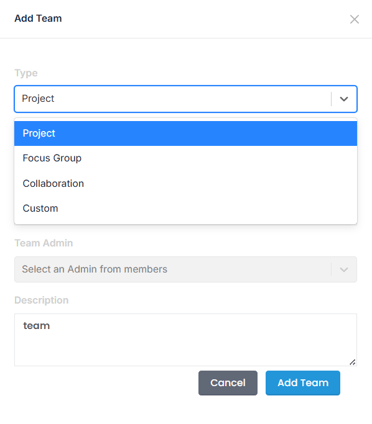
2. Fill in the following information:
- Type : Project, Focus Group, Collaboration, Custom
- Members, Select from existing members
- Name : Team name
- Description
3. Click "Add Team" to finalize.
-
Edit a Team
1. Click  next to the team you want to update
2.Modify the member or description click "Save changes".
-
Revoke a Team
1. Click  next the Team
2. Confirm to deactivate or delete the team.
✅ Conclusion
Effective user and team management ensures that the right people have the right level of access in AIZOPlan. Regularly reviewing user roles and team structures enhances security, improves collaboration, and helps align permissions with your evolving organizational needs.
AIZOPlan enables to replicate your organization's internal structure by defining divisions, departments, and roles. To add your organization's internal structure, please refer to the article : How to Set Up Your Organization's Hierarchy for detailed instructions