
Overview
The Investment Planning module enables you to effectively manage budget distribution at the portfolio level through the Portfolio Investment Allocation section. From this centralized view, you can:
-
Allocate initial budget from a specific funding source to a portfolio
-
Request adjustments when additional funding is needed
-
Transfer budget between portfolios to reallocate unused funds
This flexible approach ensures that funding remains aligned with evolving priorities, enabling responsive and transparent financial planning across your strategic portfolios.
📌 Accessing the Portfolio Investment Allocation Section
-
Go to Portfolio → Plan → Investment Planning Studio or Open the Investment Planning Studio directly from the Portfolio Office.
-
Click on the Portfolio Investment Allocation tab.
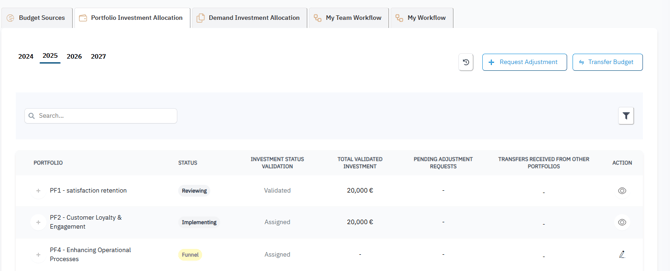
You will see three key action buttons at the top:
-
Request Adjustment
-
Transfer Budget
-
History
Below, you'll find a list of portfolios with the following key fields displayed.
-
Portfolio : Portfolio name
-
Status : Current lifecycle stage (e.g., Funnel, Reviewing, Analyzing, Ready, On Hold, Implementing, Closed)
-
Allocation Status : indicates whether investment has been reviewed/validated
-
Total Validated Investment : total amount of investment offically allocated to this portfolio
-
Pending Adjustment Request : additional investment requested but not yet approved
-
Transfers recieved from Other Portfolios : budget transffered to ths portfio from other portfolios
-
Action (Edit
 or View
  )
)
-
➕ Allocate initial Budget to a Portfolio
-
Select the Year for which the allocation is intended.
-
Locate the target portfolio in the list.
-
Click the Edit
 icon to open the Edit Portfolio dialog.
 -
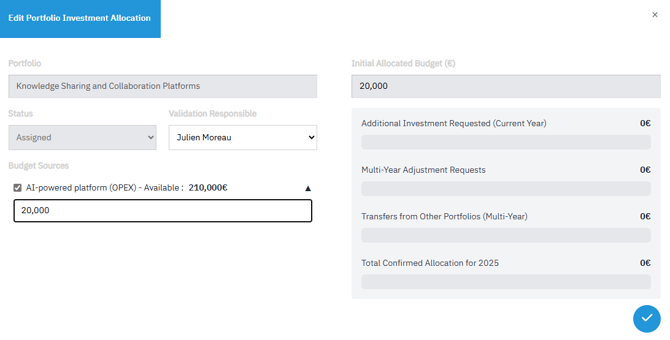
Complete the required fields:
-
Validation Responsible: Select the person responsible for validation.
-
Budget Source: Choose from available sources.
- 👉 To learn How to add a Budget Source , see the article :
How to Manage Budget Sources at the Portfolio Level
- 👉 To learn How to add a Budget Source , see the article :
-
Amount: Enter the budget amount to allocate.
-
-
Click
 to submit the allocation request.
After Submission
-
The amount appears under “Pending Adjustement Request.
-
The request status updates in real time as the Validation Responsible takes action:
-
Assigned → Reviewed → Validated or Rejected
-
-
Once validated, the approved amount appears under Total Validated Investment
🔁 Request a Budget Adjustment
-
Click the “Request Adjustment” button.
-
In the Request Budget Adjustment dialog:
-
Select the Portfolio from the list.
-
Choose the Validation Responsible.
-
View the Current Allocation (displayed automatically).
-
Select the Budget Source.
-
Enter the Requested Amount.
-
Provide a Justification.
-
-
Click Submit.
After Submission
-
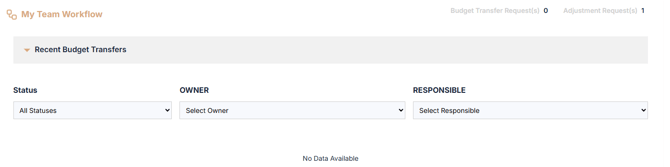
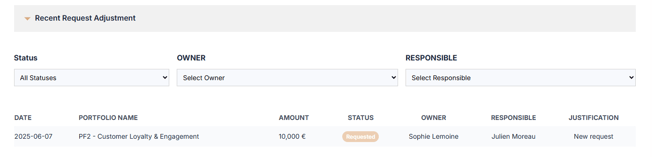
The request appears in My Team Workflow under Investment Planning.
-
The requested amount shows under Pending Adjustment Request
-
A visual icon
 appears beside Total Validated Investment
 -
The request status updates in real time as the Validation Responsible takes action:
- Assigned → Reviewed → Validated or Rejected
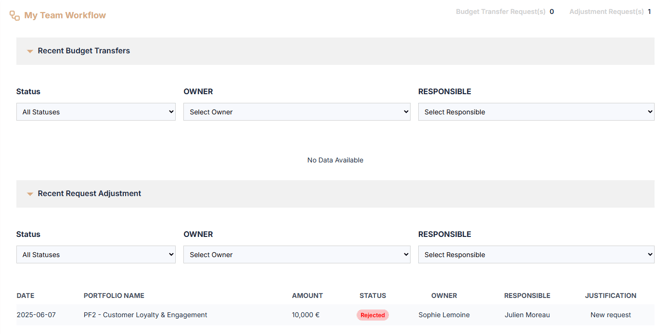
- Once validated, it reflects under Added Adjustment Requested.
🔄 Transfer Budget Between Portfolios
-
Click the “Transfer Budget” button.
-
In the Transfer Budget dialog:
-
Select the Source Portfolio (the portfolio sending the funds).
-
The system displays the Remaining Transferable Amount, excluding already committed expenses.
-
-
Enter the Amount to Transfer.
-
Select the Destination Portfolio.
-
Choose the Validation Responsible.
-
Provide a Justification.
-
-
Click Submit.
After Submission
-
The request is added to My Team Workflow
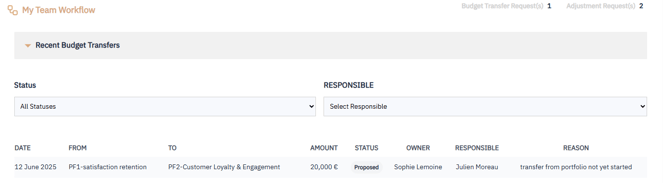
- A visual indicatorappears next to the Total validated investment amounts of both portfolios

-
The request status updates in real time as the Validation Responsible takes action:
-
Rejected
-
Approved: the aApproved transfers appear under Reallocated from Other Portfolios
-
👁️ View Portfolio Budget Allocation
- Locate the desired portfolio in the list.
- Click the View
 icon next to the portfolio
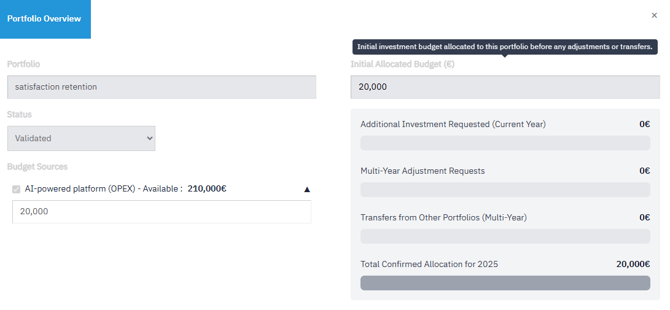
- You'll be able to review:
-
Initial Allocated Budget
-
Additional Investment Requested (Current Year)
-
Mult-Year Adjustement Requests
- Transferts from Other Portfolios (Multi-Year)
-
Toatl Confirmed Allocation for "year"
-
✅ Summary
The Portfolio Investment Allocation section gives you full control over how funds are distributed and adjusted across portfolios. You can:
-
Allocate budgets from defined sources,
-
Visualize current and pending funding,
-
Request additional funds as needs evolve,
-
Transfer budget between portfolios seamlessly.