
Overview
Unless generated through the Digital Maturity Assessment Stepper or the Lean Portfolio Management Stepper, a Strategic Roadmap can also be created directly from the various Studios—Portfolio, Program, and Project.
 Step 1: Create a Portfolio
You can create a new Strategic Portfolio directly using Direct Mode in the Portfolio Studio. This allows you to define and structure your portfolio by organizing initiatives into logical portfolios based on initiatives, solutions, programs, products, and projects.
1. Access Portfolio Studio
-
From the main navigation, go to
Portfolio → Develop → Portfolio Studio
2. Start Development
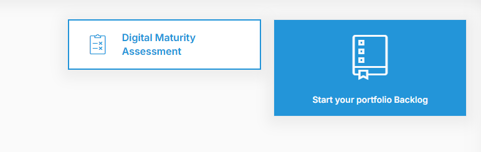
Click on Start your Portfolio Backlog and confirm  to begin your Portfolio setup.
3. Define Portfolio Details
Click Add  and choose Direct Mode.
In the Develop Portfolio dialog box, fill in the following:
-
Title: Provide a clear and concise name for the portfolio.
-
Description: Describe the portfolio’s purpose, scope, and strategic relevance .
-
Type: Select a category (Strategic Initiative, Strategic Capability, Solution).
-
Size: Choose the appropriate size. Click the info icon (i) for guidance.
-
Dates: Set estimated start and end dates.
-
Estimated Budget: Indicate the projected budget range.
-
Owner: Assign a Portfolio Owner responsible for execution and oversight
Click Validate to save your portfolio.
4. Refine Your Portfolio:
To further define your portfolio:
- In the Project Backlog, locate your portfolio and click Edit
 .
. - Complete the following fields:
🔗 Strategic Alignment
-
- Strategic Goals: Link the portfolio to strategic goals.
Assign a percentage of contribution for each goal (must total 100%).
- Strategic Goals: Link the portfolio to strategic goals.
📊 Additional Attributes
-
- Impact: Define the expected impact (Very Low to Very High).
- Priority: Set the priority level (Low, Medium, High).
- Complexity: Indicate complexity level (Very Low to Very High).
- Budget: Update or confirm the estimated budget.
📋 SAFe Portfolio Canvas (Optionnal)
If you’re applying the SAFe Portfolio Canvas framework, complete the following fields:
-
- Value Stream: Build the systems and capabilities that enable business process in an operational value stream.
- Solutions: Each Development Stream builds multiple products, solutions, services and systems that are used in operational value stream.
- Customers: Identifies both internal and external customers for each development value stream.
- Channels: Describe the way the products and services are delivered to customers. For example, Sales through web portal, sales through brick-and-mortar store, direct sales.
- Customer Relationship: Type of relationship that is essential with customers to apply and leverage products and services of business.
- Key Partner : All the partners like buyers, sellers, business alliances are identified, listed.
- Key Activities : All the important actions that the Portfolio executes to deliver value.
- Key ressource : Critical resources connected to physical, financial, intellectual and human.
- Business justification: Revenue streams and Cost structure.
💡 Tip: AIZO can assist in developing SAFe Portfolio Canvas elements using AI-based insights.
Step 2: Create a Program
Create Programs under your Portfolios to organize and structure initiatives.
1. Create a Program
-
Navigate to:
Program > Develop > Program Studio or Program Office -
Click Add
to begin program creation.
In the Create Program dialog, complete the following fields:
-
Title: Enter a clear and descriptive name for the program.
-
Description: Outline the program’s objectives and scope.
-
Type: Choose the type: Program, Product, or Others.
-
Size: Select the appropriate size of the program. Click the info icon (i) for guidance.
-
Estimated Dates: Set the estimated start and end dates.
-
Budget: Indicate the expected budget.
-
Owner: Assign a Program Owner responsible for delivery.
Click Validate  to save your program.
2. Refine Your Program
-
In Program Backlog, click Edit
to enrich:-
Link to Parent Portfolio
-
Impact, Priority, Complexity
-
Budget
-
📋 SAFe Program Canvas (Optional)
If you are using the SAFe Program Canvas framework, complete the following sections:
-
Program Scope: Define what is in scope and what is out of scope.
-
Non-Functional Requirements (NFRs): List performance, security, or compliance requirements.
-
Minimum Viable Product (MVP) Scope: Identify the initial feature set to deliver value quickly.
-
Program Structure: Outline Digital & IA products, Product stakeholders.
-
Value Outcomes: Describe the measurable results expected from the program.
💡 Tip: AIZO can assist you in developing these SAFe Canvas fields with AI-driven suggestions.
Step 3: Create a Project
Projects are the operational units of execution under Programs. You can create projects directly in the Project Studio or through the Project Office.
1. Create a Project
Navigate to:
Project > Develop > Project Studio or Project Office
Click Add and fill in:
-
Title: Clear, actionable name
-
Description: Scope and purpose
-
Type: General, Marketing, IT Service Management, Software
-
Style: Scrum, Waterfall, SAFe
-
Size, Dates, Budget, Owner
Click Validate to save your project.
2. Refine Your Project
-
From the Project Backlog, click Edit
on your project to enrich its details. - Refine the Project Description in the Project Canvas
-
In the Project Backlog, click Edit then:
-
Expand Description
-
Ensure completeness in:
-
Title, Description
-
Type, Style
-
Start/End Dates
-
Parent Program (Link your Project to the correspondant Program to avoid orphan projects)
-
Click Validate
. -
-
- Refine the Project Details in the Project Canvas
-
Expand Project Details
-
Ensure completeness in:
- Project Hypothesis: State the strategic assumption or rationale.
-
Project Scope: Clearly define what is in and out of scope.
- Data & IT Technology Requirement: Identify key dependencies and required technologies.
- Click Validate .
-
💡 Tip: AIZO can assist you in developing these SAFe Canvas fields with AI-driven suggestions.
- Refine the Project Prioritization in the Project Canvas
- Expand the Prioritization section
- Define evaluation criteria:
-
Impact – Rate from Very Low to Very High
-
Priority – Set as Low, Medium, or High
-
Complexity – Rate from Very Low to Very High
-
Estimated Budget – Choose a range (e.g., Small: $10K to Extra Extra-Large: $5M+)
-
Points – Estimate the effort required
-
Owner – Assign the responsible individual
-
Teams – identify participating teams
- Category and Value Realization – Define business context and expected outcomes
-
- Click Validate
✅Summary:
Building your Strategic Roadmap through Direct Mode in AIZOPlan empowers you to move from strategy to execution with clarity and control. By structuring Portfolios, Programs, and Projects in alignment with your business objectives, you create a living framework that supports continuous value delivery.
Your roadmap is now ready to guide your teams, prioritize investments, and drive value creation across your organization.
💡 Remember: You can always revisit and refine your roadmap as priorities evolve—and AIZO is here to assist every step of the way.