
Overview
A sprint is a short iteration—typically two weeks—that provides a consistent cadence for project execution. Sprints help teams focus on delivering incremental value, monitor progress, and maintain momentum.
This article explains how to create, update, activate, and close sprints using the Sprint Management Studio
📌Step1-Access the Sprint Management Studio
-
Go to Program > Program Office.
-
Click the Sprint Management Studio icon
 to open the Workspace

-
Select the desired project from the list
-
Sprints are grouped by status:
-
Funnel – Planned but not yet started
-
Active – Currently in progress
- Closed – Completed and finalized
-

📌Step2-Create a Sprint
1. In the Sprint Management Studio, click to create a new sprint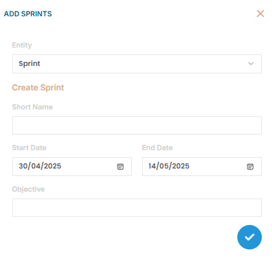
- Entity : Select "Sprint"
- Short Name : Give your sprint a clear and descriptive title
- Start & End Dates : Define the duration (typically 2 weeks)
- Objective : Add a brief statement of key objectives for the sprint
 to save. The sprint will be created with a Funnel status.
💡 Tip: To create multiple sprints at once, select “Mass Sprint” instead of “Sprint.” This allows you to bulk-create sprints across different timeframes efficiently.
✏️Update Sprint details
You can update sprint details at any time in Funnel or Active status within the Sprint Management Studio:
Update Core Information
- Click Edit
 on the sprint (whether it’s in Funnel or Active stage)
 -
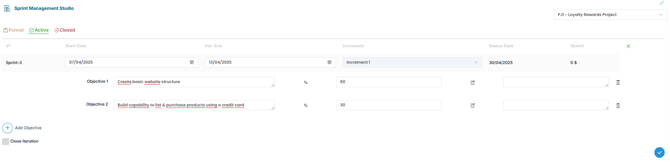
Adjust Start Date and End Date as needed.
Add or Update Objectives
-
Click Edit
 on the sprint (whether it’s in Funnel or Active stage).
 -
Click
 to add one or more objective.
For each objective:
-
Enter a name (e.g., "Create basic website structure").
-
Assign a percentage (e.g., 55% if partially achieved earlier). This percentage should be updated regularly as the objective evolves toward completion.
-
(Optional), add descriptive notes to clarify expectations
You can edit, update, or delete objectives as the sprint progresses or priorities change.
▶️Activate a Sprint
Once the current sprint is completed or closed, activate the next one :
-
Go to the Funnel sprint list
-
Select the sprint you want to activate
-
Click “Activate Iteration” to set it as the new Active sprint.
🛑Close a Sprint
-
Sprints do not close automatically when their end date is reached.
-
To manually close a sprint:
-
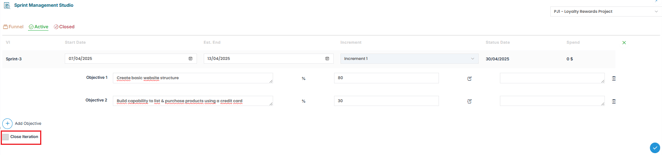
Click “Close Iteration” on the active sprint
-
⚠️ Closing a sprint locks its progress for reporting purposes ( e.g., spend tracking ) and allows the next sprint to be activated.
✅Summary
Managing sprints through the Sprint Management Studio ensures structured execution and allows your teams to stay aligned with project goals.
By regularly creating, updating, activating, and closing sprints, you maintain agile discipline and provide the cadence needed for successful, incremental delivery.