
Overview
A Strategic Transformation Roadmap is a portfolio-level plan that aligns major change initiatives with long-term business goals. In AIZOPlan, you can create it using the Lean Portfolio Management (LPM) Stepper.
The LPM helps you align your Portfolio, Program, and Project Backlogs with your Strategic Goals. You can develop and manage these backlogs manually or with assistance from AIZO, our intelligent digital copilot.
Step 1: Access Lean Portfolio Stepper
You can open the Lean Portfolio Stepper in two ways:
-
Option 1: From the main navigation, go to
Portfolio → Develop → Lean Portfolio Stepper -
Option 2: From the Portfolio Office landing page, open the Lean Portfolio Stepper directly.
Step 2: Select Strategic Goals

Select the Strategic Objectives your organization aims to achieve through portfolios, programs, and projects.
-
Choose one or more Strategic Goals.
-
Click Next
 to move to Portfolio Backlog Progress.
Step 3: Develop Backlogs
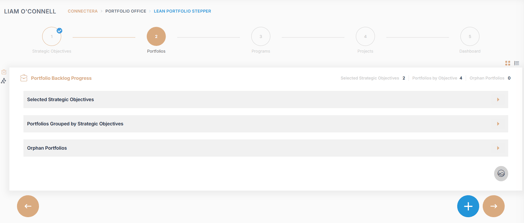
The Portfolio Backlog Progress consists of three key sections:
-
Selected Strategic Objectives – Expand to view or remove selected goals.
-
Portfolios grouped by Strategic Objectives – Expand to display associated portfolios.
-
Orphan Portfolios – Portfolios not yet linked to Strategic Goals. You must assign each to a strategic objective before proceeding.
In the LPM Stepper, you can generate your backlogs using two methods:
-
Method 1: Manual Creation
Create portfolios manually, then expand them into related programs and projects as needed. -
Method 2: Guided Generation with AIZO
For a more streamlined experience, use AIZO to automatically generate your backlogs based on your strategic inputs.
Method 1: Develop Backlogs Manually with the Direct Mode
You can manually create Portfolios, then expand them into Programs and Projects.
🗃 Create a Portfolio
-
Click Add
 to open the Portfolio dialog box.
 -
Fill in the required fields:
-
Title: Provide a clear name.
-
Description: Briefly explain the portfolio's purpose.
-
Type: Select from Strategic Initiative, Strategic Capability, or Solution.
-
Size: Choose the size; click the info icon (i) for help.
-
Dates: Estimate start and end dates.
-
Estimated Budget: Select a budget range.
-
Owner: Assign a Portfolio Owner.
-
-
Click Validate
 to save.
 -
Click Add
 to create additional portfolios if needed.
 -
Link any Orphan Portfolios to Strategic Goals.
-
Select the portfolios you want to expand into Programs, then click Next
🧱 Create a Program
-
Click Add
to open the Program dialog box. -
Fill in the required fields:
-
Title
-
Description
-
Type: Program or Product
-
Size, Dates, Budget, Owner
-
-
Click Validate
to save. -
Repeat to create more Programs.
-
Link Orphan Programs to the appropriate Portfolio.
-
Select Programs to develop into Projects, then click Next
🧩 Create a Project
-
Click Add
to open the Project dialog box. -
Complete the necessary fields.
-
Click Validate
to save. -
Repeat for additional Projects.
-
Link Orphan Projects to their respective Programs.
-
Click Next
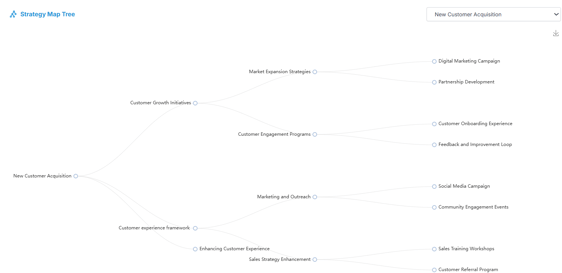
to visualize your Strategy Map Tree.
Method 2: Develop Backlogs with AIZO (AI Assistant)
If you prefer a guided experience, AIZO can help generate your backlogs automatically.
To begin:
-
After selecting your Strategic Goals, click Next
-
On the Portfolio Backlog Process screen, choose AIZO.
-
Click Next
to display your selected Strategic Goals.
Select what you want to generate:
-
Portfolio
-
Portfolio / Program / Project
-
Portfolio / Project
Then click Validate .
Review & Finalize:
-
Review the Backlog Summary generated by AIZO.
-
Click Validate
to confirm and generate your backlogs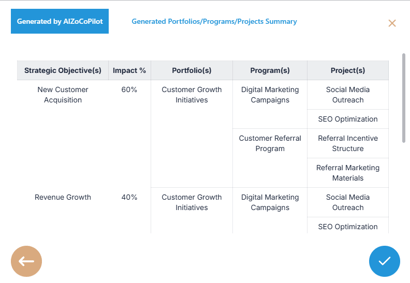
-
Click Next
to visualize your Strategy Map Tree.
🔍 Note: Backlogs generated by AIZO provide a structured starting point but must be reviewed and refined to include detailed descriptions, timelines, budgets, and ownership information.
✅Summary
By developing your Portfolio, structuring related Programs, and defining executable Projects, you’ve built a clear, actionable path aligned with your strategic goals.
💡 Remember: You can always revisit and refine your Roadmap as priorities evolve—and AIZO is here to assist every step of the way.