
Overview
The Investment Planning module allows you, as the Validation Responsible, to review and manage budget adjustment and budget transfer requests at the portfolio level through the My Workflow section.
-
Budget Adjustment Requests are submitted when a portfolio requires additional funding.
-
Budget Transfer Requests are used to reallocate unused funds from one portfolio to another.
This article explains how to access, review, and take action on these requests.
📌 Accessing the My Workflow Section
-
Go to Portfolio → Plan → Investment Planning Studio or Open the Investment Planning Studio directly from the Portfolio Office.
-
Click on the My Workflow tab.
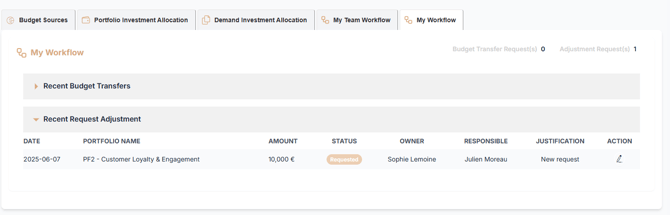
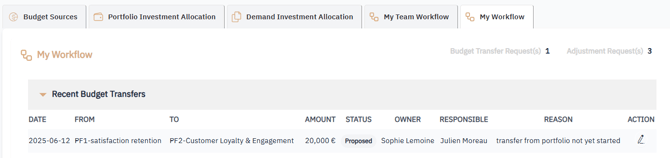
You will see a list of Budget Adjustment and Transfer requests where you are assigned as the Validation Responsible.
-
- Adjustement Request - Requested :
-
- Budget Transfer Request - Proposed :
✏️ Reviewing and Validating an Adjustment Request
-
Locate the adjustment request in the list.
-
Click the Edit icon to open the request details.
-
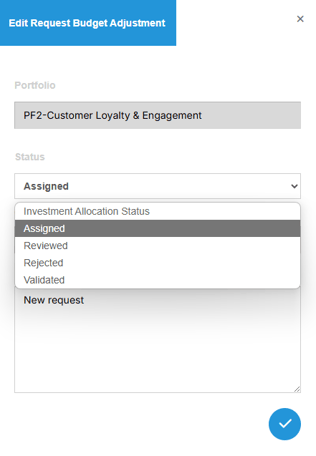
From here, you can update the status :
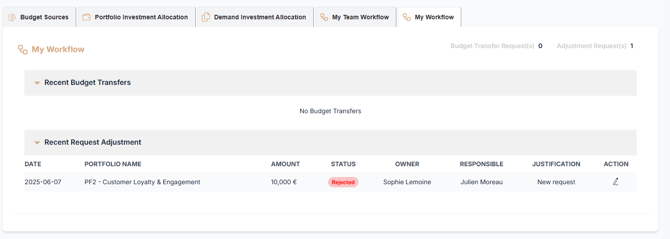
- Assigned → Reviewed → Validated or Rejected
Once an action is taken, the request status is updated and visible to the submitter.
If the request is validated:
-
The approved amount is reflected in the Portfolio Investment Allocation section under Total Validated Investment
✏️ Reviewing and Validating Transfer Request
-
Locate the Transfer request in the list.
-
Click the Edit icon to open the request details.
-
From here, you can:
-
Reject the request
-
approve the request
-
Once an action is taken, you must click "Validate Operation" to finalize the request
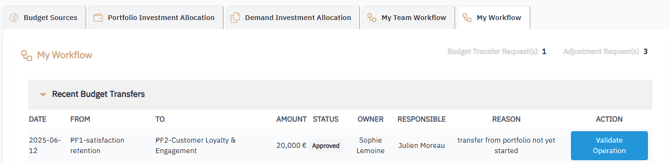
If the operation is validated,
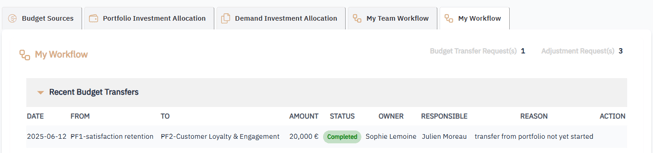
- The request status is updated to Completed in My Workflow
-
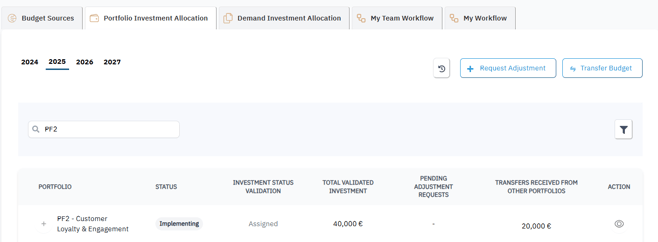
The changes are reflected in the Portfolio Investment Allocation section:
-
Total Validated Investment is updated
-
Transfers Received from Other Portfolios reflects the new incoming amount
-
✅ Summary
The My Workflow section in the Investment Planning module gives you complete oversight of budget-related requests at the portfolio level.
As the Validation Responsible, you can:
-
Review and take action on budget adjustments
-
Approve or reject budget transfers
-
Ensure that funding remains accurate, responsive, and strategically aligned
All actions are automatically reflected in the Portfolio Investment Allocation view, ensuring transparency and traceability across your investment planning process.