
Overview
Project-level changes typically focus on end-user adoption of specific tools, processes, or behaviors introduced by the project. Ensuring that these changes are not only deployed but actively used is essential to project success.
The ADKAR model supports this by guiding individuals through the process of adopting change—making sure the value delivered by the project is fully realized.
With Change Management Studio, project teams can structure and monitor these changes with clarity, accountability, and consistency.
What Is the ADKAR Model ?
ADKAR is a widely recognized and practical change management model used to guide both individual and organizational change. It outlines the key stages people go through when adopting change and helps organizations plan actions that support successful transitions.
The acronym ADKAR stands for:
-
Awareness – Understanding the need for change
-
Desire – Willingness to support and engage in the change
-
Knowledge – Knowing how to change and what to do
-
Ability – Having the skills and resources to implement the change
-
Reinforcement – Ensuring the change is sustained over time
📌Step1-Access the Change Management Studio
- From your Project Office, click the "Change Management Studio" icon
 .
.
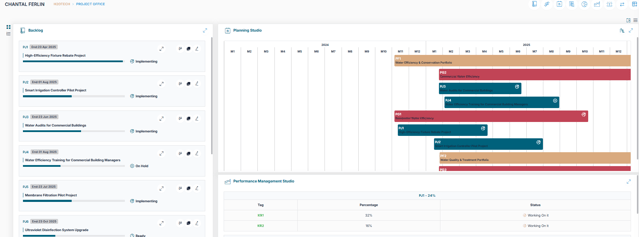
- Choose the relevant project from the scrolling list.
📌Step2-Create a Change Canvas
The Change Canvas captures the context, reasoning, and outcomes associated with the project-level change.
- Complete the following fields to define your change:
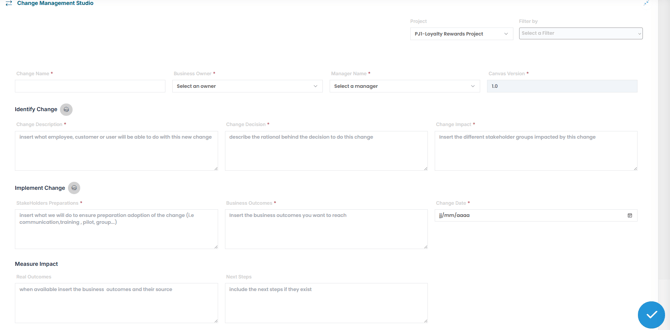
General Information
| Field | Description |
|---|---|
| Change Name | Title of the change initiative |
| Business Owner | Executive sponsor or accountable leader for the change |
| Manager Name | Person responsible for managing and executing the change |
Identify the Change
| Field | Description |
|---|---|
| Change Description | Describe what employees, customers, or users will be able to do differently |
| Change Decision | Explain the rationale or business case for initiating the change |
| Change Impact | Identify the stakeholder groups or departments affected by this change |
Implement the Change
| Field | Description |
|---|---|
| Stakeholder Preparation | Outline the communication, training, and readiness activities planned for adoption |
| Business Outcomes | Define the specific outcomes or goals this change is intended to achieve |
| Change Date | Indicate the planned implementation date for the change |
Measure the Impact
| Field | Description |
|---|---|
| Real Outcomes | Once available, document the actual results of the change and their sources |
| Next Steps | Include any follow-up actions or next steps required after implementation |
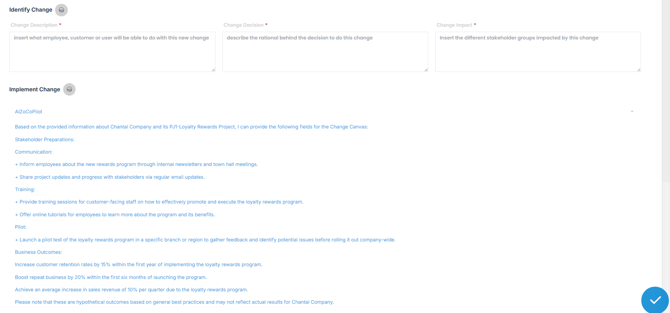
💡Use AIZO :
Click the AIZO icon  . Review AI-generated suggestions based on your project context. Copy, customize, and paste into the appropriate field
📌Step3-Add a Change Action
Once your Change Canvas is defined, create one or more Change Actions to break the change into tactical, trackable steps—each aligned with one of the five ADKAR phases
A Change Action refers to a specific, tactical activity designed to support one of the five stages of individual or organizational change:
Awareness → Desire → Knowledge → Ability → Reinforcement
1. Click  to open the "Create Change" dialog boxand Fill in the required fields manually, or click the AIZO icon to receive smart recommendations.
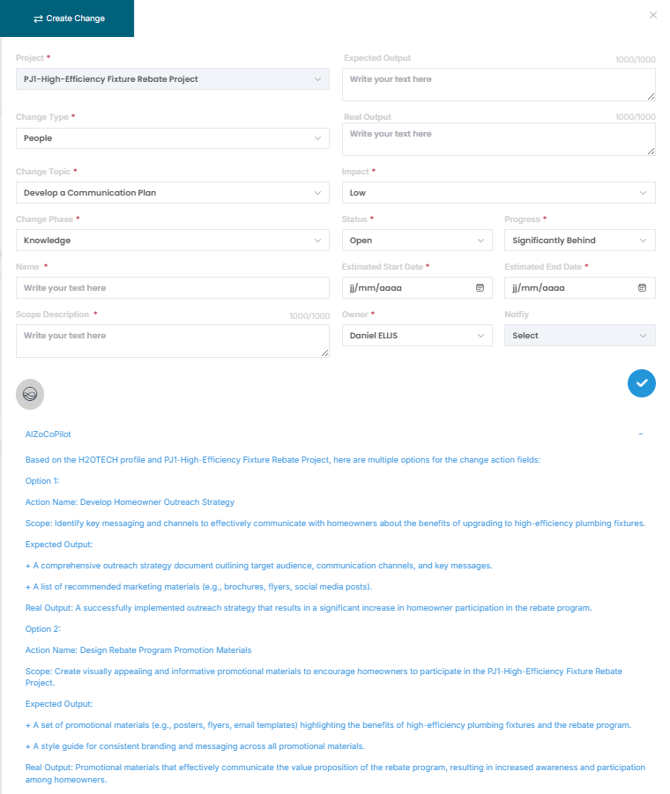
| Field | Description |
|---|---|
| Name | Action title |
| Change Type |
Classifies the nature of the change: |
| Change Topic | Main theme or domain of the change |
| Change Phase | select one of ADKAR phase: Awareness, Desire, Knowledge, Ability, Reinforce |
| Scope Description | Summary of what’s affected or in scope |
| Expected Output | Intended outcomes of the change action |
| Real Output | Actual or anticipated results |
| Impact | Assess the potential impact: Low, Moderate, High, Extreme |
| Status | Current status of the action |
| Progress | Describe progress to date |
| Estimated Start/End Dates | Timeline for this action |
| Owner | Person accountable for the action |
| Notify | Users or groups to be informed |
2. Click  to save your change record.
✏️Managing an existing Project Change
1. Select the associated project from the list in the Change Management Studio.

2. Click the Edit icon  next to the change you want to update.
3. Update the change details as needed, including any field in the Change Canvas or Change Actions.
4. Click  to save your changes and ensure they are reflected in the project record.
✅Summary
Successfully managing change at the project level means going beyond delivery—it’s about ensuring real adoption by end users. By using the Change Management Studio alongside the ADKAR model, project teams can plan, implement, and track change in a structured, people-focused way.