
Overview
Key Results (KRs) are measurable outcomes used to track the progress and impact of your project. The Performance Management Studio in AIZOPlan allows you to define, track, and update KRs in alignment with your project objectives. With the support of AIZO, you can receive intelligent recommendations on KPIs and performance targets tailored to your project's context.
📌Accessing the Performance Management Studio
-
Navigate to your Project Office
- Click the Performance Management Studio icon


📌Adding Key Results
Step1 .Click  to open the “Add Key Result”dialog box.
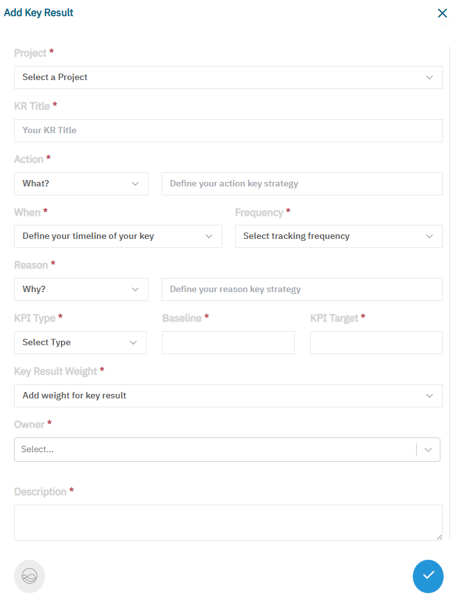
Step2. Select the Project
Choose the project from the available list.
Step3.Complete the Key Result Form
Fill in the following fields to define the Key Result. You can activate AIZO  to receive real-time, AI-powered suggestions tailored to your project’s context.
-
Title
Enter a clear, concise name that reflects the goal of the Key Result.
-
Description
Describe what success looks like for this specific project. -
Action
Select a strategic action verb, such as:
Increase, Decrease, Improve, Optimize, Develop, Exchange
and then define the metric or outcome to be influenced. -
When
Specify the timeframe during which the result should be achieved. -
Frequency
Define how often progress should be tracked (e.g., monthly, quarterly). -
Reason
Choose the strategic rationale for the KR (e.g., Growth, Efficiency, Market Share, Innovation, Customer Experience) and describe its relevance to the project. -
KPI Type
Indicate if the Key Result will be measured as a Percentage or Absolute Value. -
Initial Value
Enter the baseline or current value for the metric. -
Target Value
Set the measurable goal or threshold to achieve by the defined horizon.
Step4. Save the Key Result
- Click
 to save your entry and associate the KR with the program.
Step5. Add Additional Key Results as Needed
- Repeat the steps to define multiple Key Results within the same program to fully track performance and strategic contribution.
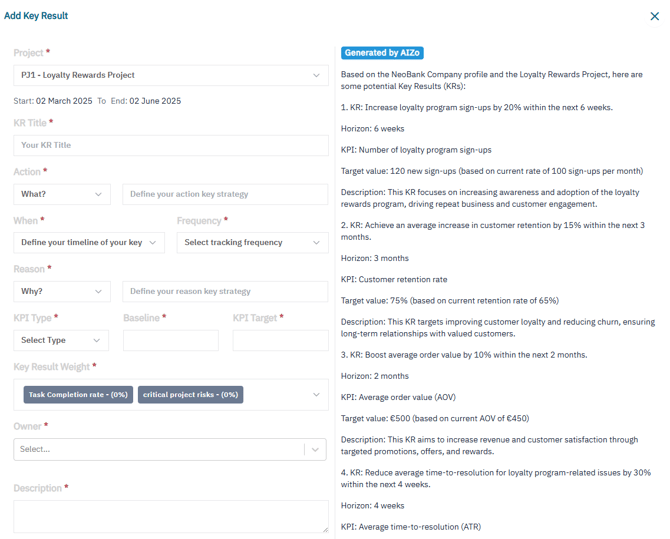
💡 Tip: Use AIZO
Activate AIZO to receive AI-driven suggestions for Key Result actions, metrics, and targets—tailored to your program’s objectives, performance trends, and strategic context. See example below :
📌Tracking Key Results (KR)
Step 1: Browse or Search for a KR
-
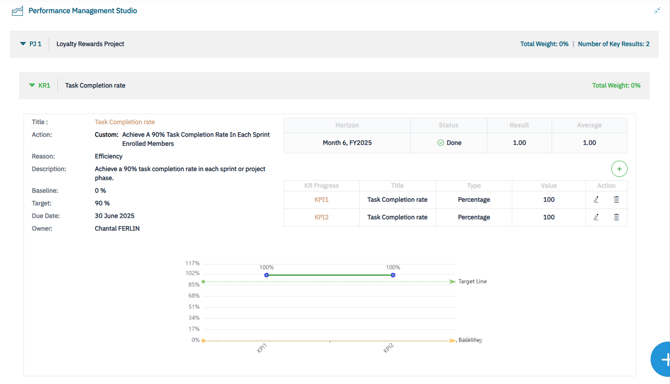
Upon selection, the following summary information will be displayed in the left side:
- Title : The name of the Key Result
- Action : Associated action or initiative
- Reason : Justification or strategic rationale
- Description : Detailed explanation of the KR
- Initial Value : Starting point or baseline
- Target : Intended result to be achieved
- Due date : Target completion date
- Owner : Person accountable for the Key Result
Step2-Track KR Progress
Each Key Result includes the following indicators:
-
Horizon – The horizon associated with the KR
-
Result – The actual performance score achieved scaled from 0 to 1

- Status- Automatically calculated based on the Result value:
-
- Stuck
 : Result = 0 (No progress)
 - Working On it
 : Result between O.1 and 0.99
 - Done : Result = 1 (Achieved)
- Stuck
-
Graphical View – Visual representation of progress over time
Step3-Add a New KPI Entry
To update a KR with a new performance value:
-
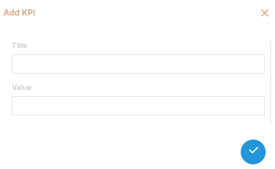
Click
 to open the “Add KPI” dialog box.
 -
Enter the latest KR value :
-
Save the entry to update the performance trend
✅Summary
Defining and tracking Key Results in AIZOPlan is essential for managing project performance and demonstrating impact. The Performance Management Studio, powered by AIZO, enables you to set clear, measurable, and relevant KRs that evolve with your program’s needs and deliver on strategic outcomes.