
Overview
The Project Spend Exercise is a key process for tracking actual expenses incurred during a project. It ensures that costs—such as labor, tools, materials, and services—remain aligned with the allocated budget and support financial accountability.
AIZOPlan adopts a Lean Budgeting approach, using Value Increment at the program level and Sprint iterations at the project level to structure and monitor both funding and spending. This approach enables agile financial oversight and promotes continuous alignment between budget consumption and value delivery.
This article explains how to record and review project spend using the Budget Studio in the Project Canvas. You’ll learn how to enter spend details by sprint and monitor financial performance using the Cost Performance Index (CPI). AIZOPlan recommends recording spend before the end of each sprint to support transparency, financial control, and timely decision-making.
📌Step1-Access the Project Canvas
1. Access Project Backlog
-
Via Project Studio
Or
Navigate to:Project > Develop > Project Studio -
Via Project Office
Expand the Project Backlog panel within the Project Office workspace.
The Project Backlog gives you a centralized view of all your projects, including their current status.
2- Open the Project Canvas
In the Project Backlog, click Edit icon  next to the desired project to open its Project Canvas.
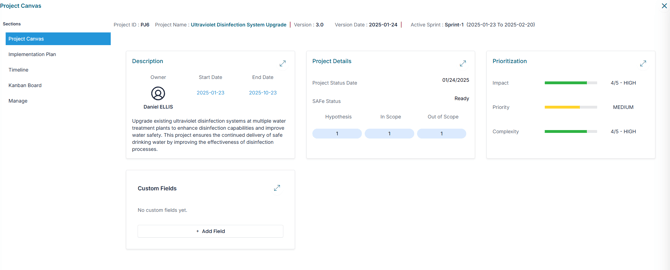
📌Step 2-Accessing the Budget Studio in the Project Canvas
1. In the Project Canvas, go to the Manage Section
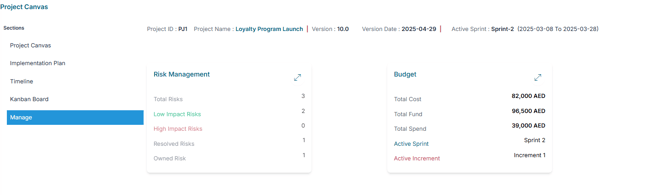
In the Budget panel, you’ll find a summary including:
-
Total Project Cost and Total Project Fund
-
Total Project Spend, which includes expenditures from both active and closed sprints
-
Active Sprint Name, with the sprint duration displayed at the top of the panel
-
Active Increment Name, representing the current Value Increment of the Program to which the project belongs.
2. Expand the Budget panel to access the Budget Studio
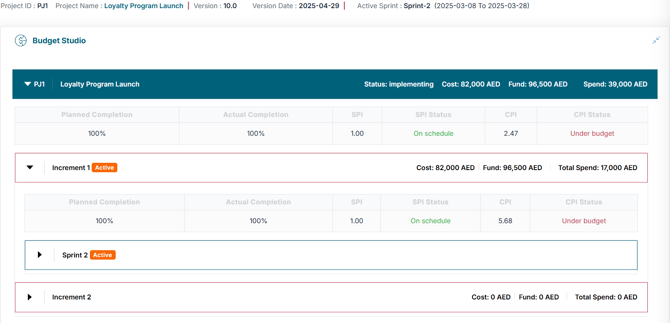
You’ll see a Project bar showing:
- Project name and its status
- Project Cost and Project Fund
- Total Project Spend, including amounts from both active and closed sprints.
You’ll also see a Value Increment bar representing the active Value Increment of the program to which the project belongs, displaying:
-
The Total project spend across all sprints in the current increment
-
A clickable Value Increment to narrow the view to the current active sprint
-
The active sprint duration is displayed at the top of the view for reference
🔍Step 3-Add Project Spend
1. Select the Active Value Increment
-
Open the active Value Increment for the program your project belongs to.
2. Select the Sprint
- Click to open the active sprint where spend needs to be recorded.
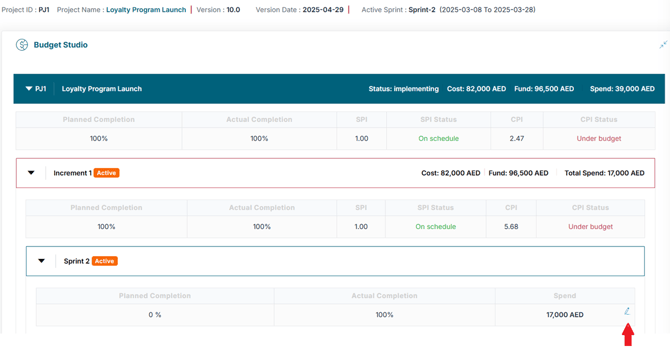
3. Click  to Edit Spend
-
This opens the spend entry form for the selected sprint.
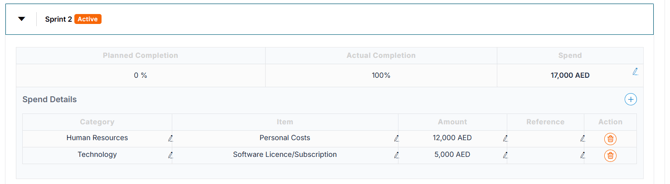
4. Add Spend Details
- Select Spend Categories and Items
- Human Resources : Personnel cost, consultant fees, recruitment expenses
- Technology: software licenses/subscriptions, hardware, development costs
- Marketing & Communication : Digital marketing, content creation, public relations
- Operational Expenses : Travel, accommodation, office supplies, legal & compliance
- Other : Any additional spend not covered above
- Enter the Amount
-
Input the actual amount spent for each item.
-
- Add Reference (Optional)
-
Include a reference or note for documentation and auditing purposes.
-
5. Save the Record
-
Click
 to Save to finalize the entry.
Repeat the process to add multiple spend entries as needed.
🔍Step 4: Track Cost Performance Index (CPI)
After recording project spend, monitor cost efficiency using the Cost Performance Index (CPI) at the Project, Value Increment, or Sprint level.

📌 What is CPI?
CPI measures how efficiently project costs are being managed.
Formula:CPI = Earned Value ÷ Actual Cost
Interpretation:
-
CPI > 1 → Project is under budget
-
CPI = 1 → Project is on budget
-
CPI < 1 → Project is over budget
Regularly tracking CPI helps ensure your project remains financially controlled and aligned with its budget throughout the life cycle.
🔍Step 5- Track Schedule Performance Index (SPI)
In addition to cost, it's essential to monitor your project’s Schedule Performance Index (SPI) to evaluate progress against the planned timeline.
📌 What is SPI?
SPI measures schedule efficiency—how well the project is performing relative to its planned progress.
Formula:SPI = Earned Value ÷ Planned Value
Interpretation:
-
SPI > 1 → Project is ahead of schedule
-
SPI = 1 → Project is on schedule
-
SPI < 1 → Project is behind schedule
Tracking SPI enables better forecasting, timely planning adjustments, and effective schedule risk management.
Tip: Used together, CPI and SPI provide a comprehensive view of both budget and schedule performance—key for maintaining control and making informed decisions.
✅Summary
The Budget Studio in the Project Canvas enables precise and agile management of project spend. It allows teams to record expenditures and monitor financial performance using key indicators such as the Cost Performance Index (CPI) and Schedule Performance Index (SPI).