
Overview
Key Results (KRs) are measurable outcomes used to track the progress of your program.
This guide walks you through how to create and configure Key Results within the Performance Management Studio. You 'll learn how to define actions, timelines and performance metrics with the support of AIZO.
📌Step1-Accessing the Performance Management Studio
-
Navigate to your Program Office
- Click the Performance Management Studio icon


📌Step2-Adding Key Results
1.Click  to open the “Add Key Result”dialog box.
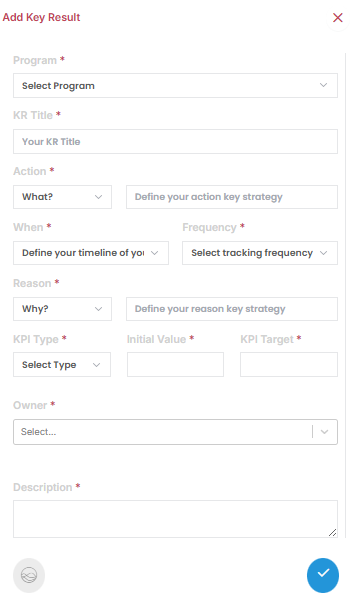
2. Select the Program
Choose the program from the available list.
3.Complete the Key Result Form
Fill in the following fields to define the Key Result. You can activate AIZO  to receive real-time, AI-powered suggestions tailored to your program’s context.
-
Title
Enter a clear, concise name that reflects the goal of the Key Result.
Example: Conduct 30 water conservation audits and consulting services for homeowners within the next 9 months
-
Description
Describe what success looks like for this specific program initiative. -
Action
Select a strategic action verb, such as:
Increase, Decrease, Improve, Optimize, Develop, Exchange
and then define the metric or outcome to be influenced.Example: develop: Number of water conservation audits conducted
-
When
Specify the timeframe or value increment during which the result should be achieved. -
Frequency
Define how often progress should be tracked (e.g., monthly, quarterly). -
Reason
Choose the strategic rationale for the KR (e.g., Growth, Efficiency, Market Share, Innovation, Customer Experience) and describe its relevance to the program. -
KPI Type
Indicate if the Key Result will be measured as a Percentage or Absolute Value. -
Initial Value
Enter the baseline or current value for the metric. -
Target Value
Set the measurable goal or threshold to achieve by the defined horizon.
4. Save the Key Result
- Click
 to save your entry and associate the KR with the program.
5. Add Additional Key Results as Needed
- Repeat the steps to define multiple Key Results within the same program to fully track performance and strategic contribution.
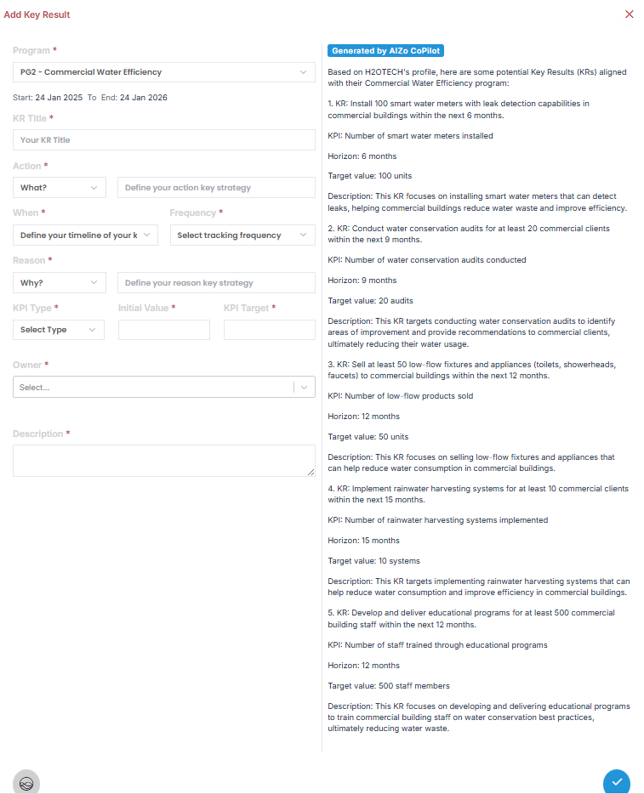
💡 Tip: Use AIZO
Activate AIZO to receive AI-driven suggestions for Key Result actions, metrics, and targets—tailored to your program’s objectives, performance trends, and strategic context. See example below :
✅Summary
Setting clear and measurable Key Results is essential for tracking your program’s performance.
By using the Performance Management Studio and leveraging AIZO, you can define KRs that are aligned with your program goals, backed by real data, and easy to track over time