
Overview
Programs in AIZOPlan are always connected to Portfolios, ensuring strong strategic alignment.
A program can represent an Agile Release Train in the SAFe framework, a product, or a group of interdependent projects.
A program helps you:
- Deliver value incrementally through Value Increments
- Forecast and allocate funding with greater precision
- Manage dependencies across multiple related projects
- Support structured change management at the program level
📌Access the Program Studio
- option 1 : Go to Program → Develop → Program Studio
- Option 2 : Open the Program Studio directly from the Program Office.
📌 Explore the Program Backlog
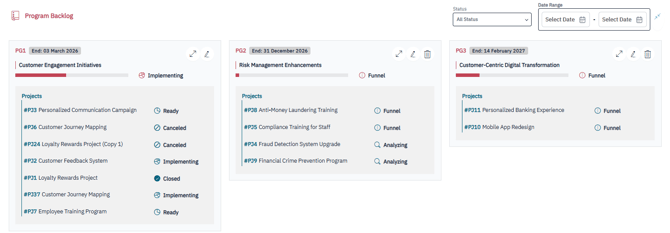
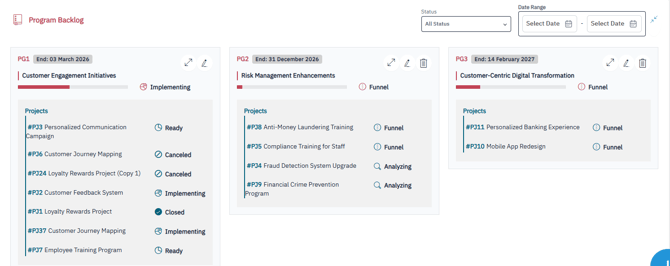
When you open Program Studio, you'll land on the Program Backlog, which displays all program.
You can filter the list by:
- Status
- Date Range
➕ Add a New Program
To create a new program:
1. Click Add 
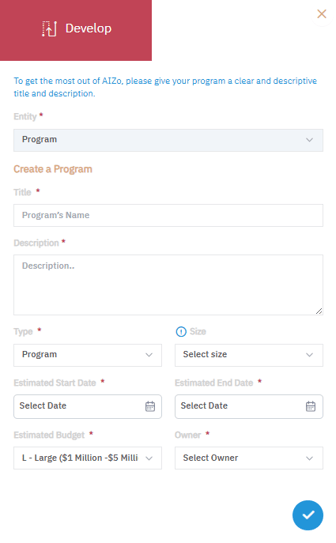
2.Complete the following fields In the dialog box :
| Field | Description |
|---|---|
| Title | A clear, descriptive name for your program |
| Description | Outline the scope, objectives, and strategic value |
| Type | Select Program, Product, or Other |
| Size | Choose based on expected scope |
| Estimated Dates | Set estimated start and end dates |
| Estimated Budget | Enter the estimated budget |
| Owner | Assign the responsible Program Owner |
3. Click Validate  to save.
Once created, the program appears in the Program backlog and can be fully managed like any other program.
✏️ Update or Refine a Program
- Locate your program in the Program Backlog and Click Edit

Update Key Fields
-
-
Link to Parent Portfolio: Associate the program with a portfolio
-
Impact, Priority, Complexity: Reassess and update as needed
-
Budget: Adjust based on changes or approvals
-
Owner: Reassign if needed
-
Refine with SAFe Program Canvas (Optional)
If you are using the SAFe framework, update the canvas with:
-
-
Program Scope: Define key objectives and constraints
-
Non-Functional Requirements (NFRs): Performance, compliance, etc.
-
Minimum Viable Product (MVP) Scope: First features to deliver value
-
Program Structure: Digital/AI Products, Product Stakeholders
-
Value Outcomes: Quantifiable results expected
-
💡 Tip: Use AIZO to assist in completing or suggesting fields in the SAFe Canvas with AI-generated insights.
Once updates are complete, Click Validate to save and publish your changes. The updated Program will now be reflected in dashboards, reports, and linked Projects
✏️ Delete a Program
You can remove a program from the Program Backlog. A program can only be removed while in the Funnel stage.
- Locate your program in the Program Backlog and Click remove icon

✅ Summary
Program Studio gives you the way to add, update, and manage programs.
Creating and maintaining Programs in AIZOPlan helps ensure your initiatives are well-structured, strategically aligned, and execution-ready. By regularly refining Program details and leveraging tools like the SAFe Canvas and AIZO, you can adapt quickly to change and maximize value across your portfolio.