
Overview
This article focuses specifically on tracking Key Results at the strategic level using the OKR Management Studio,
This article explains how the OKR Tree visually maps and connects Objectives and Key Results across all organizational levels (Strategy, Portfolio, Program, and Project) to support alignment, visibility, and progress tracking
.
📌Step1-Access the OKR Management Studio
You can open the studio in two ways:
-
Option 1: From the main navigation, go to
Strategy → Manage → OKR Management Studio -
Option 2: From the Strategy Office landing page, open the OKR Management Studio directly.
📈 Step2-Explore the views to analyze Strategic Key Results (KR) performance
🔄 Switch Between Views
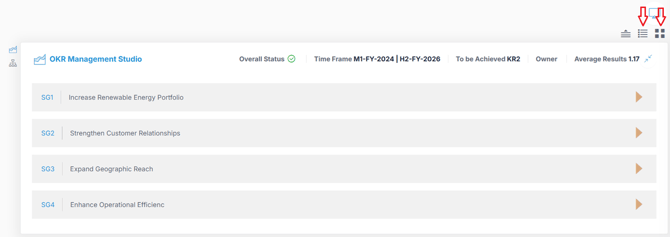
Use the icons in the corner of the interface to toggle between:
-
Summary View
 : A high-level snapshot to quickly assess overall KR performance
 -
List View
 : A detailed, tabular format displaying each Key Result linked to a strategic goal.
📊 Summary View – Quick Progress Overview
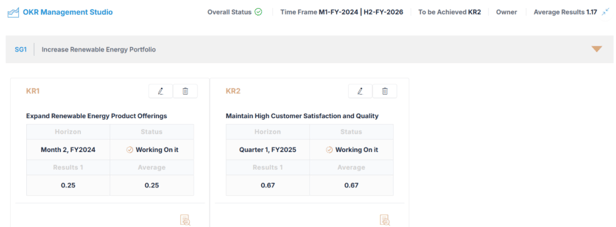
The Summary View provides a quick overview of Key Result progress
-
-
Horizon – The time frame or strategic horizon associated with the KR
-
Result – The actual score achieved scaled from 0 to 1

-
-
- Status – Automatically calculated based on the Result value
- Stuck
 : Result = 0 (No progress)
 - Working On it
 : Result between O.1 and 0.99
 - Done : Result = 1 (Achieved)
- Stuck
- Status – Automatically calculated based on the Result value
-
- Average – The average performance across KPI values
📋 List View – In-Depth Tracking
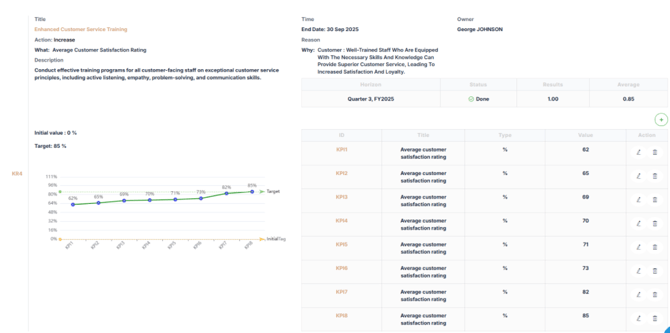
The List View provides a more detailed, granular view of Key Result performance, including:
-
Real KPI values associated for Key Result.
-
A visual progress graph
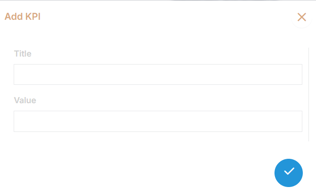
To Add or Update real KPI values:
- Click
 to open the ‘Add KPI’ dialog box and enter the latest real performance value :
📌Step3-Navigate the OKR Tree for Strategic Alignement
The OKR Tree is designed to visually map and connect Objectives and Key Results across all organizational levels—Strategy, Portfolio, Program, and Project.
Its main objectives are to:
-
Show how Strategic Objectives cascade down into portfolios, programs, and projects.
-
Track alignment between high-level strategy and operational execution.
-
Monitor progress and status at every level, from strategic objectives down to project-specific key results.
-
Identify gaps, overlaps, or misalignments early, making it easier to realign initiatives if needed.
1. Access the OKR Tree:
- In the OKR Management Studio, switch to the OKR Tree View by selecting the icon
 located on the left.

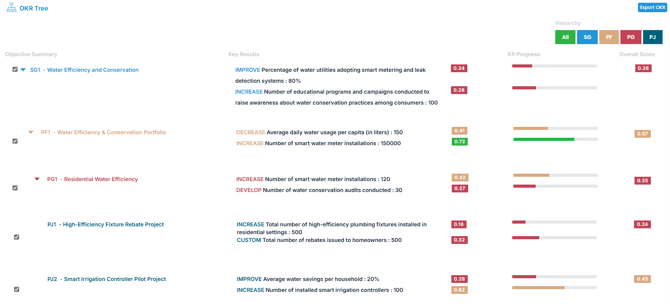
2. What You’ll See:
-
Strategic Objectives with summaries of KR progress
-
Hierarchical breakdowns including:
-
Portfolios under each Strategic Objective
-
Programs under each Portfolio
-
Projects under each Program
-
Use visual indicators to monitor alignment and progress across the organization, with a specific focus on strategy-level OKRs.
3. Export OKR
- You can export your OKRs for reporting, sharing, or deeper analysis.
✅ Summary
Tracking strategic OKR progress through the OKR Management Studio empowers you to maintain real-time visibility into your strategic execution.
By using the Summary View, List View, and OKR Tree, you can ensure that objectives stay aligned, anticipate risks early, and adjust actions to drive better results across all organizational levels.