
Overview
The Implementation Plan allows you to break down your project into actionable components for better tracking and execution. It consists of Workstreams, Milestones, and Activities—core project management structures that help organize tasks, monitor progress, and ensure timely delivery.
-
Workstream: A group of related and sequential activities that collectively achieve a specific objective within the project.
-
Milestone: A key checkpoint or deliverable that significant progress in the project timeline.
-
Activity: Actionable task required to complete a workstream.
The Implementation Plan should be defined during the planning phase of the project after the project has been created and before execution begins.
📌Step1-Access the Project Canvas
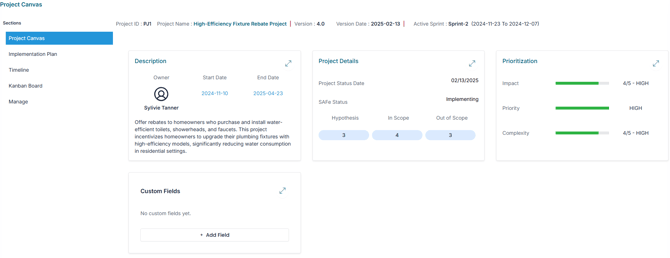
The Project Canvas serves as your control center for managing all aspects of the project. This step shows you how to locate and open the Project Canvas via the Project Studio or Project Office.
1-Access Project Backlog
-
Via Project Studio
Or
Navigate to:Project > Develop > Project Studio -
Via Project Office
Expand the Project Backlog panel within the Project Office workspace.
The Project Backlog gives you a centralized view of all your projects, including their current status.
2- Open Project Canvas
In the Project Backlog, click Edit icon  next to the desired project to open its Project Canvas.
🔍Step2. Define the Implementation Plan in the Project Canvas
Once you're in the Project Canvas, you can begin outlining the Implementation Plan. This involves defining Workstreams, Milestones, and Activities to break down the project into manageable units.
1. Open the Implementation Plan Section
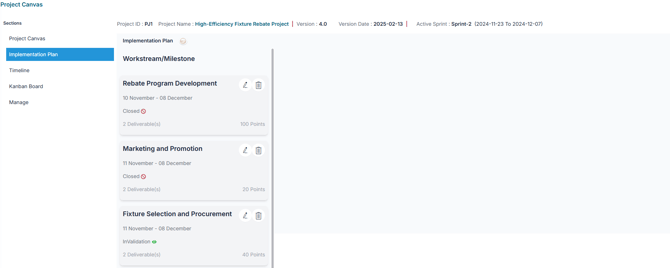
- In the Project canvas, expand the Implementation Plan section .
2. Add Workstreams or Milestones
-
Click
 to create a new Workstream or Milestone.
 -
Fill in the required details:
- Name : Title of the Workstream or Milestone
- Deliverables : Expected outcomes
- Start and End Dates : Planned duration
- Teams : select Teams involved in execution
- Owner : Responsible person or lead
- Estimated Points : Effort estimate ( in points)
Note : AIZOPlan uses points as a measure of effort. If you don’t use a point system, consider 1 point = 1 hour
- Click
 to add your entry.
Tip : You can update or delete workstreams and milestones at any time using the edit and delete icons.
3. Add Activities to Workstreams
To define the individual steps required for each workstream:
- Select the relevant Workstream
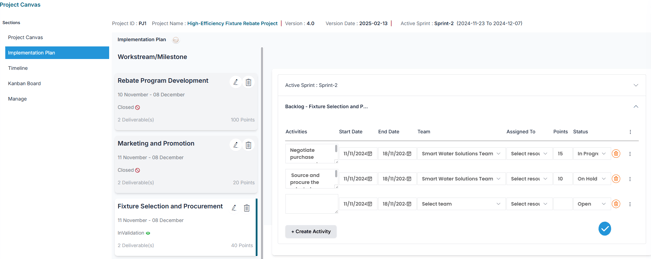
- Expand the Workstream Backlog
- Click “Create Activity”
- Complete the following fields:
- Activity : Clear, concise task title
- Start / End Dates : task duration
- Team : assigned team
- Assigned Resource : Individual responsible
- Estimated Points : Effort estimate
- Status : Choose from: Open, Assigned, In Progress, In Validation, On Hold, Cancelled, Closed
 to add your activity.
✅ Conclusion
The Project Canvas offers a dedicated section for defining and managing the Implementation Plan, serving as your central tool for organizing, tracking, and executing project delivery effectively.