
Overview
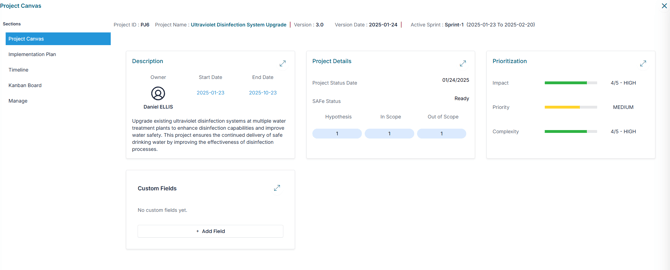
In AIZOPlan, most key project settings are initially defined during the demand phase. The Project Canvas allows you to view or refine those settings as the project progresses through execution. This guide focuses on how to access the Project Canvas and update the Project Description, Project Details, and Prioritization settings.
📌Step1-Accessing the Project Canvas
1- Access Project Backlog
-
Via Project Studio
or
Navigate to:Project > Develop > Project Studio -
Via Project Office
Expand the Project Backlog panel within the Project Office workspace.
The Project Backlog gives you a centralized view of all your projects, including their current status.
2- Open Project Canvas
In the Project Backlog, click Edit icon  next to the desired project to open its Project Canvas.
🔍Step2-View or Update Project Settings
1. View or Update the Project Description
- Expand the Description section
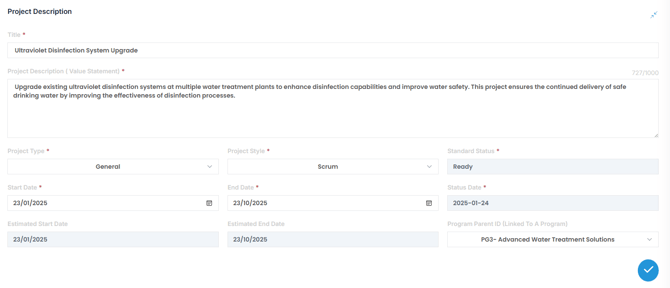
- Fill out the following fields:
-
Title – assign a clear, descriptive project name.
-
Project Description – Provide relevant context to help AIZO AI Assistant offer tailored support.
-
Project Type – Select from options such as : General, Marketing, IT Service Management, or Software.
-
Project Style – Choose a delivery method: Scrum, Waterfall, SAFe.
-
Start and End Dates – Specify the project timeline.
-
Parent Program – Link the project to an existing program
-
- Click
 to apply changes.
2. ReView or Update Project Details
- Expand the Project Details section to manage:
-
Status – Indicate the project's current lifecycle stage.
-
Project Hypothesis – State the strategic assumption or rationale.
-
Project Scope – Clearly define what is in and out of scope.
-
Data & Technology Requirements – Identify key dependencies and required technologies..
-
- Click
 to confirm your updates
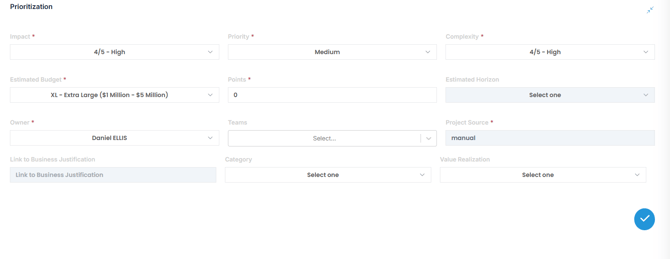
3. Review or Adjust Prioritization
- Expand the Prioritization section and define evaluation criteria:
-
-
Impact – Rate from Very Low to Very High
-
Priority – Set as Low, Medium, or High
-
Complexity – Rate from Very Low to Very High
-
Estimated Budget – Choose a range (e.g., Small: $10K to Extra Extra-Large: $5M+)
-
Points – Estimate the effort required
-
Owner – Assign the responsible individual
-
Teams – identify participating teams
- Category and Value Realization – business context and expected outcomes
-
- Click to confirm your updates
✅Summary
While project foundations are captured during the demand phase, the Project Canvas allows you to review, refine, and update those settings throughout execution. It ensures your project remains clearly defined, strategically aligned, and properly prioritized within your portfolio or program.