
Overview
The Team Kanban Board in the Project Canvas helps teams visualize, manage, and progress work through clearly defined workflow stages. It supports Agile collaboration by providing a real-time, drag-and-drop interface that improves task transparency, team alignment, and execution efficiency throughout the project lifecycle.
By organizing Workstreams and Activities into a Kanban-style board, teams can track progress, identify bottlenecks, and stay focused on delivering value at every stage.
📌Step1-Accessing the Project Canvas
1. Access Project Backlog
-
Via Project Studio
Or
Navigate to:Project > Develop > Project Studio -
Via Project Office
Expand the Project Backlog panel within the Project Office workspace.
The Project Backlog gives you a centralized view of all your projects, including their current status.
2. Open Project Canvas
In the Project Backlog, click Edit icon  next to the desired project to open its Project Canvas.
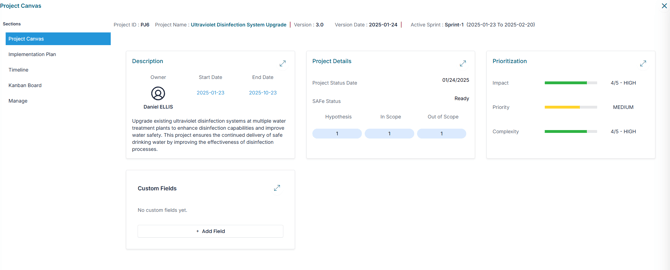
Step2- Collaborate with the Team Kanban Board in the Project Canvas
1. Open the "Kanban Board" Section
- Within the Project Canvas, click on the Kanban Board section to visualize and manage Workstreams and Activities in real time.
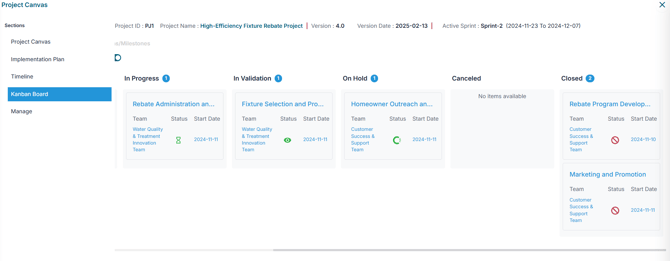
2. Use Filters and View Options
Customize your view using built-in filters to focus on specific on specific areas of execution:
-
By Workstreams / Milestones – Track progress grouped by workstream/milestone
-
By Activities – Monitor all tasks across the entire project.
-
By Team – Filter the board to show only activity or workstream assigned to a specific team, helping each team focus on its own backlog and workload
3. Understand Workflow Status
Each Workstream or Activity moves through defined workflow stages:
-
Open – Not yet started or in Backlog
-
Assigned – Assigned to a team member
-
In Progress – Actively being worked on
-
In Validation – Pending review or quality check
-
On Hold – Temporarily paused
-
Cancelled – No longer active
-
Closed – Fully completed
4. Change Status with Drag and Drop
You can update the status of a Workstream or Activity by simply dragging it from one column to another on the Kanban board:
-
Click and hold the item you want to move
-
Drag it to the appropriate status column (e.g., from In Progress to In Validation)
-
Release the mouse to drop it in the new status
The system will automatically update the item’s workflow status in real time
✅Conclusion
TThe Team Kanban Board in the Project Canvas enables teams to collaborate effectively, visualize progress, and stay aligned throughout each stage of project execution. Leverage filters, workflow statuses, and the drag-and-drop interface to ensure smooth task management, real-time updates, and consistent Agile practices across your project.