
Overview
The Project Timeline in Project Canvas provides a Gantt-style visual representation of your project’s Workstreams and Activities. It allows you to easily track start and end dates, visualize dependencies, and monitor progress across phases—ensuring greater clarity and alignment throughout project execution.
📌Step1-Access Project Canvas
1. Access Project Backlog
-
Via Project Studio
Or
Navigate to:Project > Develop > Project Studio -
Via Project Office
Expand the Project Backlog panel within the Project Office workspace.
The Project Backlog gives you a centralized view of all your projects, including their current status.
2- Open Project Canvas
In the Project Backlog, click Edit icon  next to the project you want to work on. This opens the Project Canvas.
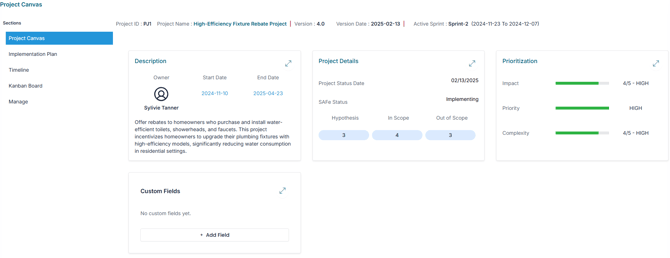
🔍Step2-Visualize the Project Timeline in the Project Canvas
1. Open the “Timeline” Section
Within the Project Canvas, expand the Timeline section to display a Gantt-style timeline that includes:
-
Workstreams
-
Activities
-
Start and end dates
-
Dependencies (if defined)
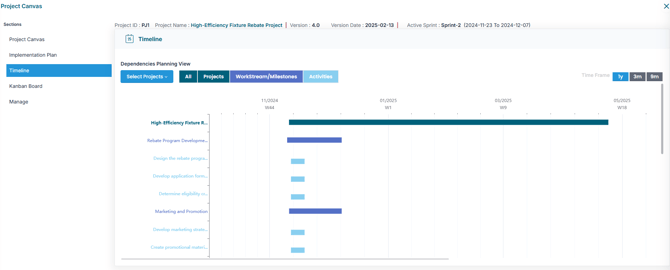
2. Toggle Timeframe views
Use the Toggle Timeframe option to adjust the timeline display according to your planning needs :
-
1 Year – Ideal for annual and long-term planning.
-
9 Months – Great for medium-term tracking across multiple increments
-
3 Months – For short-term, sprint-level, or quarterly planning
3. Toggle View Elements
-
Click to show or hide Workstreams and Activities to simplify the view or focus on specific details.
4. Visualize cross-project dependencies
- Select the Select Project option to include other related projects in the view. This allows you to see cross-project dependencies and how timelines align across program or portfolio.
✅ Conclusion
The Timeline in Project Canvas gives you a centralized, visual way to manage project schedules, track progress, and coordinate dependencies—supporting successful project delivery.