
Overview
AIZOPlan provides real-time dashboards that give a complete view of resource usage, effort distribution, and financial tracking.
You can access three core dashboards from the Capacity Management Studio:
- The Resource Utilization Overview provides a clear view of how each resource's capacity is being used
- The Workload Utilization Dashboard provides project-based insights into resource assignments, time distribution, and overall utilization efficiency
- The Budget Overview Dashboard provides a visual summary of how resource costs are distributed across projects.
📌Access Capacity Planning Dashboard
- In your Program Office, click the Capacity Management Studio icon
 .
.
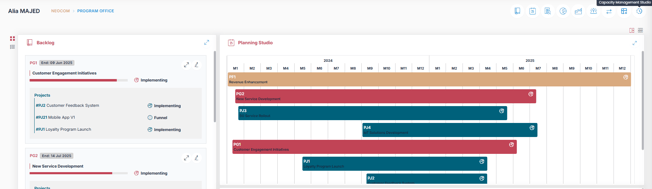
- Select "Capacity Planning Dashboard" Section
- Choose the dashboard you want to view.

📊Resource Utilization Overview Dashboard
The dashboard displays how much of each resource’s capacity is being used. It helps identify whether resources are balanced, underutilized, or overallocated.

🔍How to Use the Dashboard
Apply filters to refine your view:
- Start Date – Select the reporting start date
- Department – Filter by team or business unit
- Role – Filter by specific roles (e.g., Developer, UX Designer)
- Status – Filter by utilization status (Balanced, Underutilized, Overallocated)
- Metrics – Select which metrics to display:
- Billable Utilization
- Non-Billable Utilization
- Total Utilization (%)
- Period – View data by:
- Weekly
- Monthly
- Quarterly
- View – Choose display mode:
- Calendar
- Table
Table View Details
Click “Filter” to display the detailed data table, including:
|
Column |
Description |
|
Person |
Name of the resource |
|
Department |
Assigned department or business unit |
|
Role |
Functional role |
|
Billable Utilization |
% of time spent on billable work |
|
Non-Billable Utilization |
% of time on non-billable work (support, training) |
|
Total Hours |
Total hours logged during the period |
|
Total Utilization (%) |
Utilization rate based on available vs. logged hours |
|
Cost (Hourly) |
Hourly cost rate for the resource |
|
Status |
Balanced / Underutilized / Overallocated |
Workload Overview Dashboard
The Workload Utilization Dashboard is a project-based time tracking tool that provides visibility into:
-
Who is working on what
-
How time is distributed
-
How efficiently resources are being utilized

🔍How to Use the Dashboard
Use similar filters to tailor your analysis
- Start Date – Select the start of the reporting period
- Project – Choose a specific project
- Status – Filter by utilization status:
- Balanced
- Underutilized
- Overallocated
- Details – Toggle for additional breakdowns
- Metrics – Select which metrics to display:
- Billable Utilization
- Non-Billable Utilization
- Total Utilization (%)
- Period – View data by:
- Weekly
- Monthly
- Quarterly
- View – Choose display mode:
- Calendar
- Table
Table View Details
Click “Filter” to display the detailed data table, including:
|
Column |
Description |
|
Project |
The selected project name |
|
Workstream |
Specific workstream or initiative within the project |
|
Person |
Resource assigned |
|
Department |
Department or team the person belongs to |
|
Role |
Functional role of the person (e.g., Developer, QA Lead) |
|
Billable Utilization |
% of time spent on billable work |
|
Non-Billable Utilization |
% of time on internal or non-client activities |
|
Total Hours |
Total hours logged within the selected period |
|
Total Utilization (%) |
Overall workload utilization rate |
Budget Overview DashBoard
The Budget Overview Dashboard (also known as the Cost Consumption Dashboard) provides a visual summary of how resource costs are distributed across projects. It helps project managers and finance teams track project spending, monitor resource cost efficiency, and align budgets with actual work delivered.

🔍How to Use the Dashboard
The filters and view options available in this dashboard are the same as the Workload Utilization Dashboard, allowing for seamless cross-comparison.
Common Filters:
-
Start Date
-
Project
-
Department or Role
-
Utilization Status (Balanced, Underutilized, Overallocated)
-
Time Period: Weekly, Monthly, Quarterly
-
View: Calendar or Table
Table View Details
Click “Filter” to display the detailed data table.
In addition to the workload Overview Table View metrics, the Budget Overview Table View includes two additional columns:
| Column | Description |
|---|---|
| Cost per Hour | The internal or billing rate of the resource (used for cost calculation). |
| Cost Period | Total cost calculated for the selected period (weekly, monthly, or quarterly). |
✅ Summary
The Capacity Planning Dashboards in AIZOPlan provide real-time visibility into how resources are utilized across programs. With three dedicated dashboards—Resource Utilization, Workload Utilization, and Budget Overview—you can:
-
Track individual and team workload performance
-
Identify underutilized or overallocated resources
-
Monitor financial impact and cost distribution across projects
-
Filter data by role, department, project, and time period
-
Switch between calendar and table views for flexible analysis
These dashboards help program and resource managers make data-driven decisions, optimize capacity, and align delivery with strategic and financial goals.