
Overview
The Project Office in AIZOPlan is your centralized workspace for managing the entire project execution lifecycle.
Projects typically begin as demands and go through the demand lifecycle before transitioning into execution.
👉 Learn how to use the Demand Management Module in AIZOPlan: A Quick Start Guide
This article guides you through the steps to add an ongoing project in AIZOPlan.
📌Step1-Access the Project Office
-
Go to Project > Project Office.
📌Add a Project
Click to open the Dialog Box and complete the fields
-
Title – Enter a clear and descriptive project name
-
Portfolio – Select the portfolio the project belongs to
-
Program – Link the project to a related program
-
Investment – Specify the allocated investment amount
-
Description – Provide a brief summary of the project
-
Size – Choose from: S, M, L, XL, XXL
-
Start Date – Select the planned project start date
-
End Date – Select the expected end date
-
Estimated Budget – Automatically inferred from size:\n
-
S (Small): $10K – $50K
-
M (Medium): $50K – $250K
-
L (Large): $250K – $1M
-
XL (Extra Large): $1M – $5M
-
XXL (Extra Extra Large): $5M and above
-
-
Owner – Assign the project owner
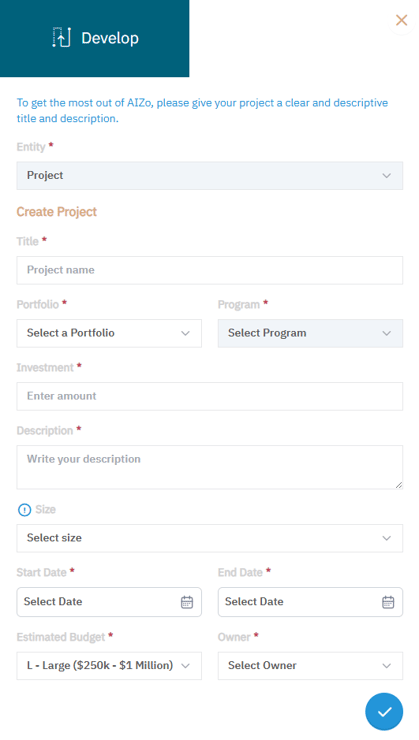
Once created, the project is added to the Project Backlog, where it can be tracked, updated, and managed.
👉 To continue: Get Started with the Project Office
✅ Summary
Adding an ongoing project in AIZOPlan is a simple but essential step to move from planning to execution. By assigning the right portfolio, program, and investment upfront, and capturing key details like size, timeline, and ownership, your project is properly set up in the Project Backlog. From there, you can manage it through the Project Office, leveraging AIZOPlan’s full suite of execution and tracking tools.