
Overview
A demand represents a new idea, business need, or improvement opportunity that requires evaluation, prioritization, and potentially, investment.
In AIZOPlan, the portfolio-level Demand Hub serves as the central workspace for managing all incoming requests. It helps capture, organize, and assess these demands to ensure alignment with strategic goals and available resources.
This article guides you through the process of submitting a new demand using the “Add Demand” form in the Demand Hub.
1. Accessing the Demand Hub
-
To Open the Demand Management Studio, from the main navigation
Portfolio → Plan → Demand Management Studioor directly from the Portfolio Office. -
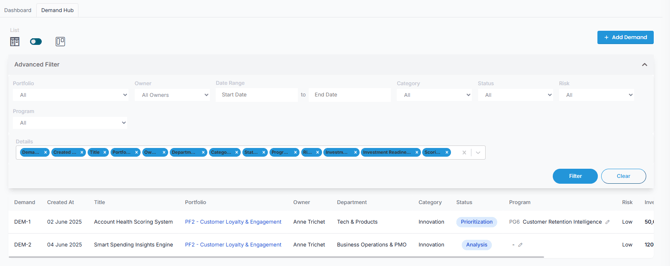
Click the Demand Hub tab to access the central workspace for managing demands.
The Demand Hub provides both List View and Kanban View to help you track demand status and progress. The Kanban View offers a visual representation of each demand’s lifecycle stage, making it easy to monitor movement from funnel to Planned status.
2. Adding a New Demand
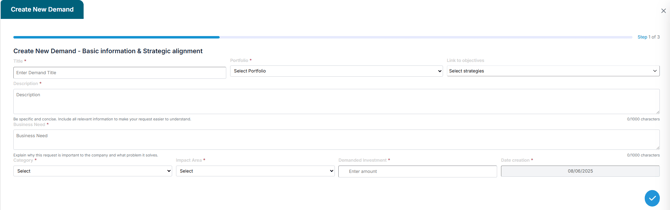
Click the “+ Add Demand” button to open the submission form and complete the following sections:
🔹 Demand Basics
-
Title (Required): Provide a clear and descriptive name for your demand.
-
Portfolio (Required): Select the portfolio that this demand belongs to.
-
Description (Required): Enter a concise summary of the initiative, including key actions or goals.
🔹 Strategic Alignment
-
Link to Objectives (Optional): Select one or more strategic goals that this demand supports.
🔹 Business Justification
-
Business Need (Required): Describe the problem this demand addresses or the opportunity it captures, and explain its importance to the organization.
🔹 Classification
-
Category (Required): Choose the most relevant classification, such as Innovation, Compliance, Cost Optimization, Growth, or Efficiency.
-
Impact Area (Required): Specify where the demand will create value, e.g., Customer, Operations, Employee, Revenue, or Risk.
🔹 Financial Information
-
Demanded Investment (Required): Enter the estimated amount of investment needed for the initiative.
3. Submitting the Demand
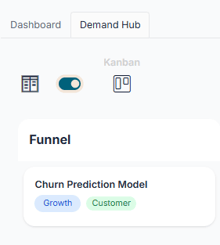
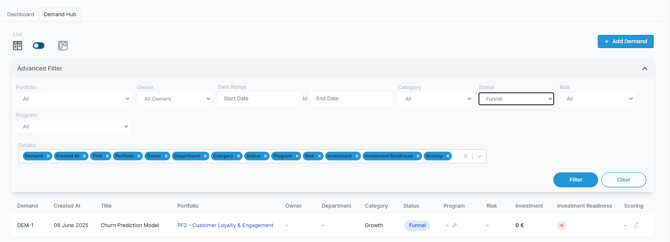
After completing all required fields, click Submit, The demand will be created and automatically placed in the Funnel stage of the Demand Lifecycle.
It will be visible in both the Kanban View and the List View under the Funnel column.
Summary
This article explains how to create and submit a new demand using the “Add Demand” form in AIZOPlan. It covers all required inputs, from title and business justification to investment needs. Once submitted, the demand enters the Funnel stage. To continue progress, it must be moved to the Review stage, where it will undergo further evaluation.
👉 see How to Review a Demand ?