
Overview
In the AIZOPlan demand management process, each new request progresses through structured lifecycle stages :
Funnel → Review → Analysis → Prioritization → Planned
Once a demand reaches the Analysis stage, AIZOPlan helps evaluate its investment maturity by simulating financial returns. This ensures that only viable, well-scoped initiatives proceed to funding.
This article explains how to complete the Investment Readiness assessment using the ROI Simulator in the Investment Planning module.
🔢Step1. Accessing the demand in the Demand HUB
- To Open the Demand Management Studio from the main navigation
Portfolio → Plan → Demand Management Studioor directly from the Portfolio Office. - Click the Demand Hub tab to access the central workspace for managing demands.
-
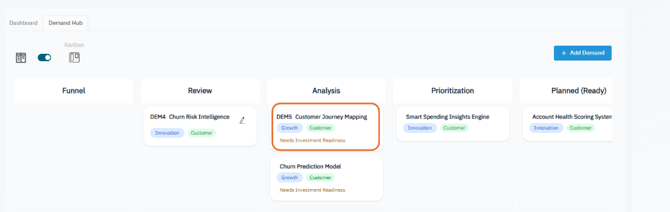
Locate the demand currently in the Analysis stage
-
The demand will display a “Need Investment Readiness” tag
-
Example: the tag appears for the “Customer Journey Mapping” demand
-
-
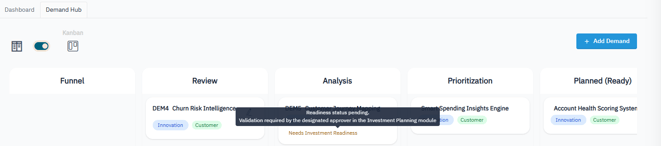
The demand’s Readiness Status will show as Pending, indicating that validation is required by the designated approver in the Investment Planning module
🔢Step2. Accessing the Demand Investment Allocation Section
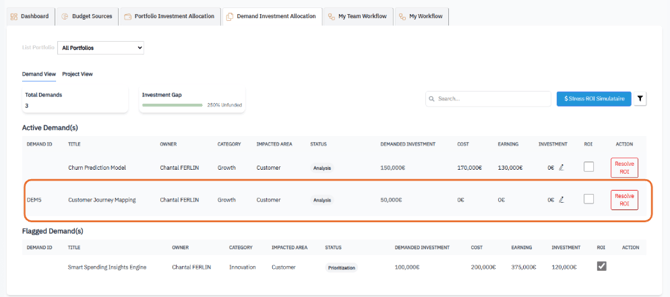
The Demand Investment Allocation section is located in the Investment Planning module. It is used to simulate ROI and prepare active demands for funding decisions.
-
Navigate from the main navigation to Portfolio → Plan → Investment Planning Studio
-
Click the Demand Investment Allocation tab.
-
You will see two lists:
-
Active Demands – demands currently undergoing ROI simulation
-
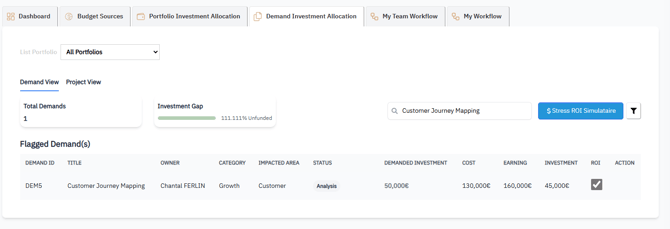
Flagged Demands – demands with finalized ROI simulations
-
Key Fields
| Field | Description |
|---|---|
| Demanded Investment | Initial requested budget |
| Cost | Estimated implementation cost (0 before simulation) |
| Earning | Expected financial return (0 before simulation) |
| Investment | Total capital allocation (empty before simulation) |
| ROI | Status of ROI simulation (unclick before simulation) |
| Action | Launch the ROI Simulator to resolve readiness |
🔢Step3. Launching the ROI Simulator Stepper
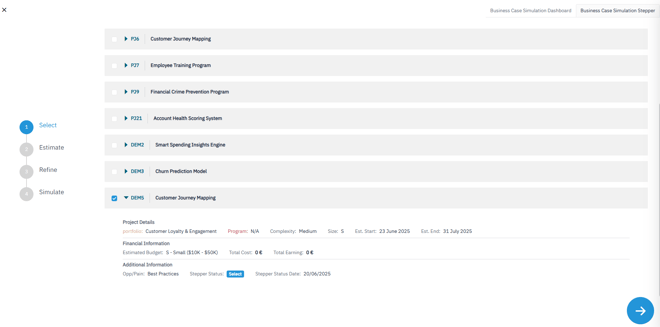
Click Resolve ROI in the Action column to open the 4-step ROI Simulator:
🔸 Step 1: Select the Demand
-
Confirm the demand you wish to simulate
-
Click Next to proceed
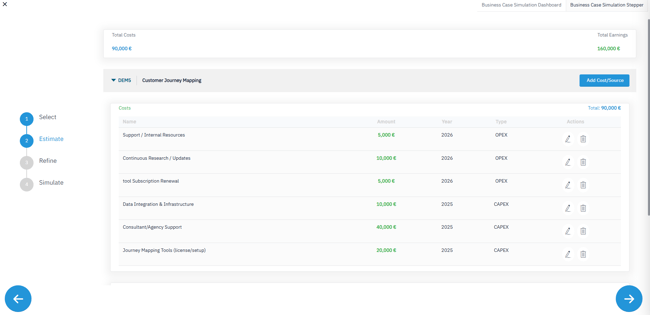
🔸 Step 2: Estimate Costs & Earnings
1. Add Estimated Costs
-
Click Add Cost/Source → Select Estimated Cost
-
Fill out the required fields:
-
Expenditure Type: Choose CapEx or OpEx
-
Year: Specify the year of the expense
-
Estimated Cost: Name/label for the cost
-
Estimated Amount: Input the financial value
-
Repeat this to enter multiple cost items
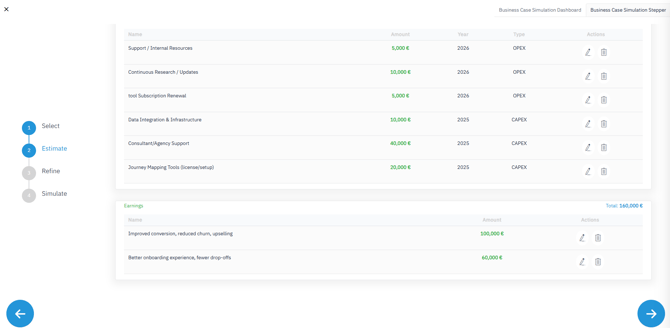
2. Add Expected Earnings
-
Click Add Cost/Source → Select Earning
-
Fill out:
-
Earning Name/Description
-
Amount Earned: Estimated benefit
-
-
Add multiple entries as needed
-
Click Next to proceed
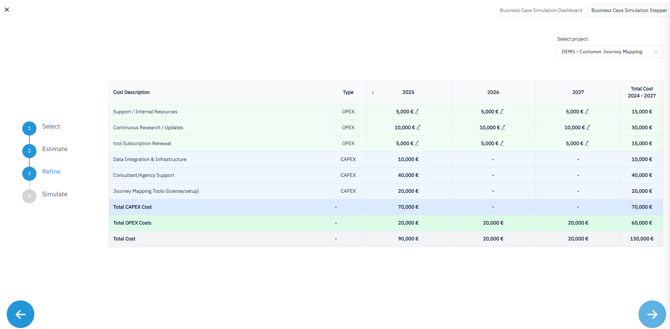
🔸 Step 3: Refine Costs
-
View and fine-tune your OpEx entries
-
Adjust amounts to improve cost accuracy
🔸 Step 4: Estimate ROI
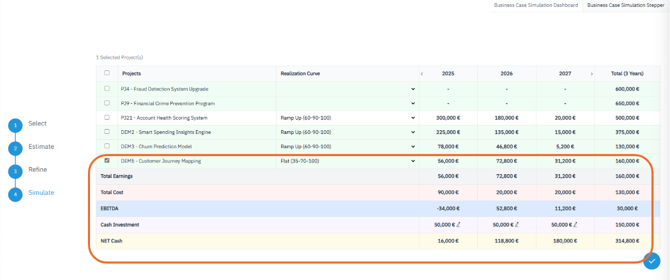
In the final step, simulate the financial impact using the data provided.
-
Confirm or Update the selected demand
-
Select a Realization Curve
-
A predefined adoption pattern (e.g., Flat, Ramp Up, Early, Late)
-
-
Visualize Key Financial Metrics
| Metric | Description |
|---|---|
| Total Earnings | Cumulative projected revenue or quantified benefit based on the selected realization curve. |
| Total Costs | Combined CAPEX and OPEX across the full simulation period |
| EBITDA | Earnings before interest, taxes, depreciation, and amortization (Total Earnings – OpEx) |
| Cash Investment | Represents the initial investment request. Pre-filled by default but can be manually adjusted to reflect approved or simulated budget scenarios |
| Net Cash Flow | Net Cash Flow = Total Earnings – Total Costs; shows when the project becomes profitable |
🔢Step4. After ROI Simulation Completion
Once the ROI simulation is completed and saved:
-
The Cost field is updated with the estimated implementation cost
-
The Earning field is populated with the total expected financial return
The Investment field remains editable and must be manually set based on funding strategy (e.g., one-time or multi-year capital allocation)
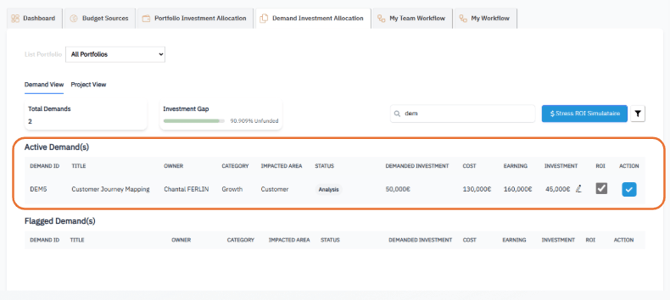
- Once the investment is saved, The demand is moved to Flagged Demands list
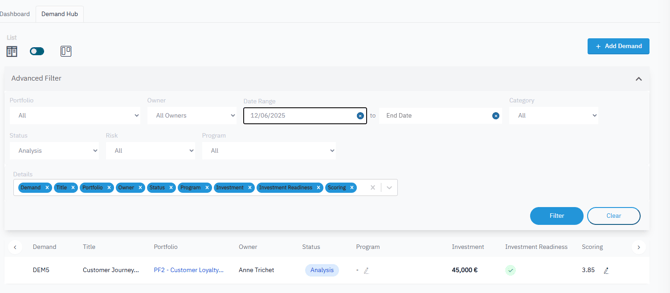
Open the Demand Hub :
- The "Investment Readiness” field is completed in list View
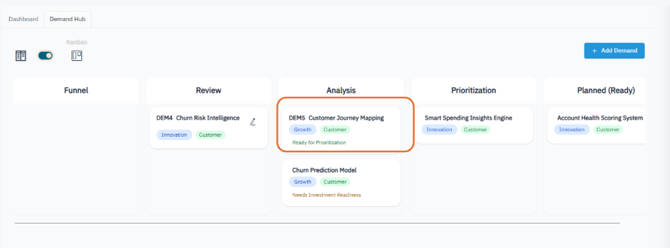
- In Kanban View, the “Need Investment Readiness” tag is automatically removed from the demand.
-
-
If scoring has also been completed, the system automatically adds the “Ready for Prioritization” tag.
-
✅ Summary
The Investment Readiness assessment is a critical checkpoint that ensures financial viability and strategic alignment.
Once both the Scoring and Investment Readiness assessments are finalized, the demand can proceed to the Prioritization stage.
🔹 Next Step: Prioritizing and Approving Demands
🔹Need to finalize Scoring assessment ? See: How to Perform Demand Analysis and Scoring ?