
Overview
A Program Increment (PI) is a structured timebox—typically 8 to 12 weeks—that aligns teams around a shared set of priorities and deliverables. It connects strategy to execution by organizing work across multiple programs within a defined period. Program Increments serve as the heartbeat of agile delivery, helping teams plan, coordinate, and deliver value continuously while staying aligned with strategic goals.
Step 1. Access Increment Management Studio
-
Go to Program > Program Office.
-
Click the Increment Management Studio icon to open the detailed view.

Step 2. Create Program Increments
-
In the Increment Management Studio, click
 to start creating a new Increment.
 -
In the Add Value Increments dialog:
-
Select Value Increment in the Entity field.
-
Choose the Program you want to add an Increment for.
-
Enter a Short Name for the Increment (e.g., "PI Q2 2025").
-
Define the Start Date and End Date (typically covering 8–12 weeks).
-
Add general Objectives for this planning period.
-
-
Click
 to save.
💡 Tip:
If you want to create several Increments at once, select Mass Value Increment instead of Value Increment in the Add Value Increments dialog. This allows you to bulk-create multiple Increments quickly across different periods or programs.
Step 3. Refine Increment details
Once your Program Increment is created, you can manage and refine it directly in the Increment Management Studio:
🗓️ Update Core Information
- Click Edit
 on the Increment you want to refine (whether it’s in Funnel or Active stage)
 -
Adjust Start Date and End Date as needed.
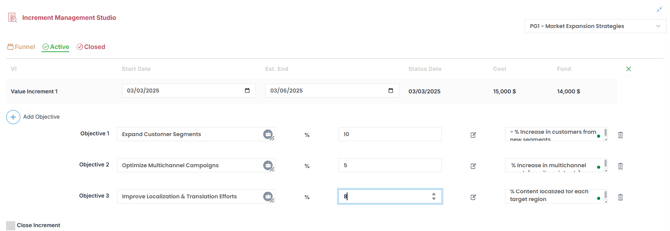
🎯 Refine Objectives and KPIs
-
Click Edit
on the Increment you want to refine (whether it’s in Funnel or Active stage). -
Click
Add Objective to define one or more strategic or delivery goals.Some objectives may have started in previous PIs and are still in progress.
For each objective:
-
Enter a name (e.g., "Improve customer retention").
-
Assign a percentage for the PI Objective Progress (e.g., 55% if partially achieved earlier). This percentage should be updated regularly as the objective evolves toward completion.
-
Optionally, add descriptive notes to clarify expectations or KPIs.
You can edit, update, or delete existing objectives and KPIs as priorities and progress evolve.
✅ Save and Validate
-
Click
 to save and validate your updates.
 -
To complete an Increment, click Close Increment to archive it.
⚠️ Don’t forget to add your Increment Spend before closing it.
Once an Increment is closed, spend data can no longer be updated. Make sure your cost tracking is complete.
Step 4. Increment Lifecycle: Funnel, Active, and Closed
In the Increment Management Studio, Program Increments are organized into three lifecycle stages to help you manage progress and strategic alignment effectively:
🔁 Funnel
-
This is the initial stage where Program Increments are drafted or under evaluation.
-
Use this tab to capture and plan future increments before committing to execution.
-
Typically, no budget or objectives are finalized yet.
✅ Active
-
Increments that are currently being executed appear here.
-
These include defined dates, budgets, and clear objectives.
-
You’ll spend most of your time managing Increments from this tab — updating KPIs, tracking costs, and making adjustments.
🛑 Closed
-
Once a Program Increment is completed or no longer active, move it here by selecting “Close Increment.”
-
This tab serves as a historical record and helps you evaluate past performance and inform future planning.
⚠️ Don’t forget to add your Increment Spend before closing it.
Once an Increment is closed, spend data can no longer be updated. Make sure your cost tracking is complete.
💡 Switching between these tabs gives you a clear overview of where each Increment stands and what needs your attention next.
Step 6. Cost & Fund
You can also track your Cost and Fund in the Increment Management Studio.
-
Cost reflects the estimated financial effort required for the Increment.
-
Fund shows the available budget allocated to support it.
🔒 These values are read-only and cannot be updated here—they are automatically pulled for tracking purposes. You can set and update Cost and Fund in Budget Studio.
Summary
Creating and managing your Program Increments through the Increment Management Studio ensures you stay aligned with strategic priorities, monitor progress effectively, and maintain full visibility over execution. By setting clear objectives, tracking costs and funding, and moving Increments through their lifecycle stages, you can drive continuous value delivery and keep your programs on track.