
Overview
The Program Forecast/Fund Exercise is a critical step in estimating and allocating funding for program initiatives over time.
AIZOPlan is built on Lean Budgeting principles and uses Increments as the core planning and funding cadence at the program level and project level.
As a result:
-
At the program level, costs must be forecast and funds must be allocated per Value Increment.
-
At the project level, costs must be forecast and funds must be allocated per sprint.
This article provides step-by-step guidance on entering and reviewing program and project costs and funds within the Budget Studio.
What’s the Difference Between Program Cost and Program Fund?
| Term | Definition | When to Do It with AIZOPlan |
|---|---|---|
| Cost | The forecasted financial requirement for the program, based on projected expenses and resource needs for the upcoming Value Increment. | At the start of each Value Increment, ideally during increment planning. |
| Fund | The actual funds allocated to the program for that increment, aligned with the approved budget and financial strategy. | At the start of each Value Increment, to confirm financial coverage. |
🏷️ Enter Program Costs
Step1. Open Budget Studio
-
Navigate to your Program Office
-
Click the “Budget Studio” icon


Step2. Select the Program
- Select the portfolio that contains the program, then choose the relevant program for which you want to record forecasted Costs.
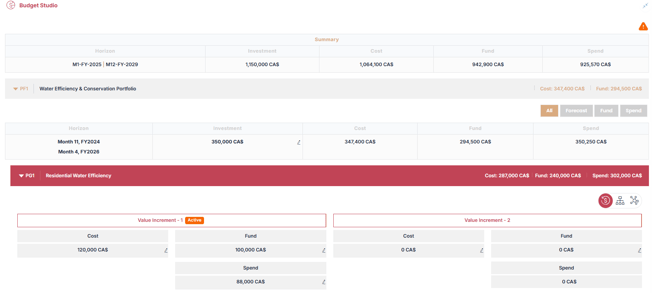
- In the header bar displaying the program name, you can view:
- Cost : represents the total forecasted costs for the entire program across all Value Increments.
- Fund : refers to the total amount of financial resources allocated to the program.
- Spend : the cumulative sum of all actual expenses recorded for the program, including both: Program-level spends (e.g. shared services, overheads) and Project-level spend from all projects within the program
Step3. Choose the Value Increment
- Select the active Value Increment that has just started for which the forecasted costs will be defined
- This ensures the Cost is linked to the correct planning cycle
Note : If the Value Increment hasn't been created yet, refer to the article on how to create one : How-to-manage-program-increments-in-increment-management-studio
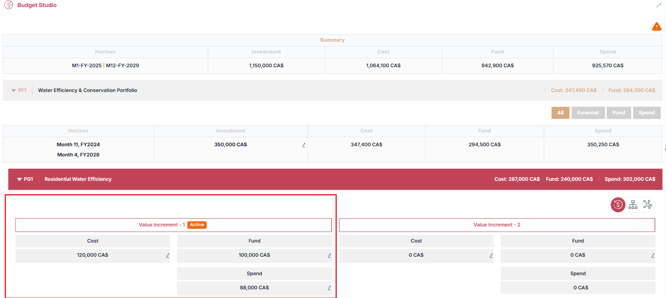
Step4. Open the Cost Entry form
- Click Edit
 to open “Edit Cost Details” for the selected increment and click
  to add a new item.
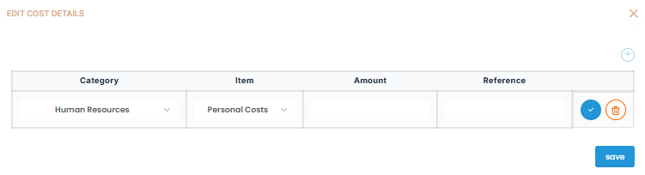
Step5. Add Cost Details
Fill in the required fields to record program costs:
- Select Cost Categories and Items
-
- Human Resources : Personnel cost, consultant fees, recruitment expenses
- Technology : Personnel cost, consultant fees, recruitment expenses
- Marketing & Communication : Digital marketing, content creation, public relations
- Operational Expenses : Travel, accommodation, office supplies, legal & compliance
- Other : Any additional spend not covered above
- Enter the cost amount
- (Optional) Add a reference or note for context or documentation
- Click
 to Save the record. Add additional Cost entries if needed.
 - Click "Save" button to close the dialog Box.
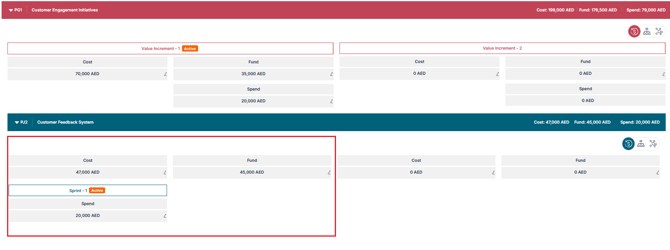
Step6. How to Enter Project Cost
To record forecasted costs for a specific project:
-
Select the relevant project from the program
-
Choose the Sprint
-
Open the Cost Entry Form
-
Fill in the required fields
-
Click
 to Save.
🏷️ Enter Program Funds
Step1. Open Budget Studio
-
Navigate to your Program Office
-
Click the “Budget Studio” icon
Step2.Select the Program
- Choose the relevant program for which you want to record Funds.
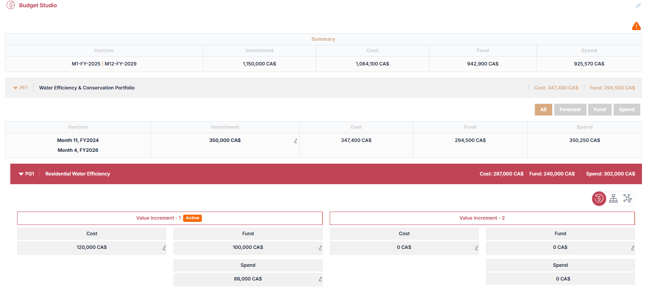
Step3. Choose the Value Increment
- Select the active Value Increment that has just started for which the Funds will be defined
-
This ensures the Cost is linked to the correct planning cycle
Note : If the Value increment is not created, see the relevant article to do it : How-to-manage-program-increments-in-increment-management-studio
Step4. Open the Fund Entry form
- Click Edit to open “Edit Fund Details” for the selected increment and click a new item.
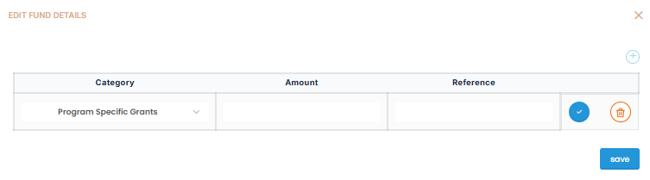
Step5. Add Fund Details
Fill in the required fields to record program funds:
- Select the Fund Categories
- Program-Specific Grants : External grants or targeted funding
- Internal Reallocation : Budget moved from another internal source
- Departmental Contribution : Contributions from business units
- Other : Any additional or non-standard funding
-
Enter the fund amount
-
(Optional) Add a reference to explain the funding source
- Save the record. Add additional fund entries if needed.
Step6. How to Enter Project Fund
To record allocated funds for a specific project:
-
Select the relevant project from the program
-
Choose the Sprint
-
Open the Fund Entry Form
-
Fill in the required fields
-
Click Save
💰 Review Program Cost/Funds
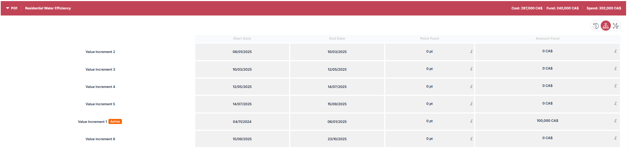
1. View Program Fund history
- Click on the Fund History icon
 to see all allocated Funds per Value Increment for the selected program
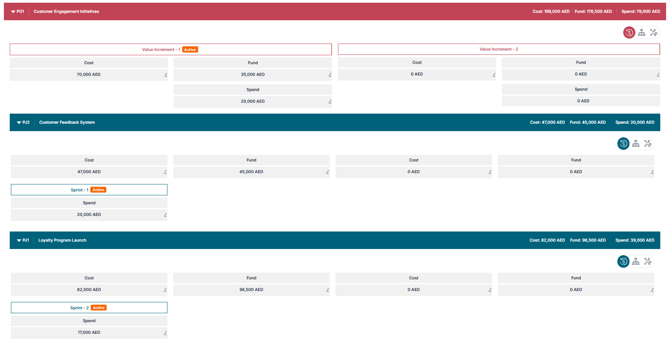
2. View consolidated Cost/Funds/spend for the program and associated projects
- Navigate to visualize Forecasted Cost, allocated Fund, actual spend for both the program and its associated projects, giving you a consolidated view of financial performance across the entire program.
✅ Summary
The Budget Studio enables program managers to plan, allocate, and monitor financial resources with precision across both the program and its projects.
By aligning cost forecasting and fund allocation with Increments, AIZOPlan supports agile, incremental funding practices.