
Overview
The Performance Management Studio enables you to track the progress of Key Results (KRs) across your program. This tool helps program managers monitor strategic execution in real time by capturing performance data, visualizing trends, and scoring progress on a 0 to 1 scale. By regularly updating KRs, you can ensure alignment with strategic goals, identify performance gaps, and make informed, data-driven decisions.
This article provides a step-by-step guide on how to access, review, and update performance data for Key Results within the Performance Management Studio.
📌Step1-Access the Performance Management Studio
-
Navigate to your Program Office
- Click the “Performance Management Studio” icon


📌Step2. Select the Program
Choose the program you want to monitor from the available list.
Note: If you have not yet set up your Key Results for the program, see the related article:how-to-set-a-key-result-for-a-program
📌Step3-Select the Key Result (KR) to Track
Browse or search for the Key Result (KR) you want to review.
-
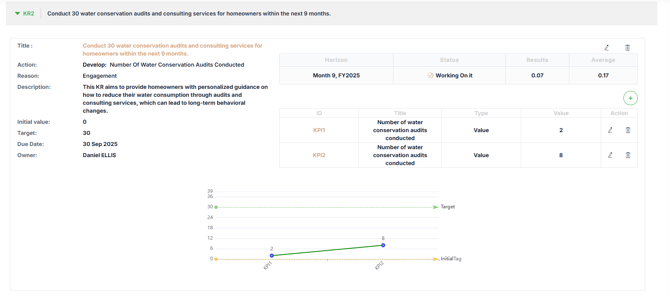
Upon selection, the following summary information will be displayed in the left side:
- Title : The name of the Key Result
- Action : Associated action or initiative
- Reason : Justification or strategic rationale
- Description : Detailed explanation of the KR
- Initial Value : Starting point or baseline
- Target : Intended result to be achieved
- Due date : Target completion date
- Owner : Person accountable for the Key Result
📌Step4-Track KR Progress
Each Key Result includes the following indicators:
-
Horizon – The horizon associated with the KR
-
Result – The actual performance score achieved scaled from 0 to 1

- Status- Automatically calculated based on the Result value:
-
-
- Stuck
 : Result = 0 (No progress)
 - Working On it
 : Result between O.1 and 0.99
 - Done : Result = 1 (Achieved)
- Stuck
-
-
Graphical View – Visual representation of progress over time
📌Step5-Add a New KPI Entry
To update a KR with a new performance value:
-
Click
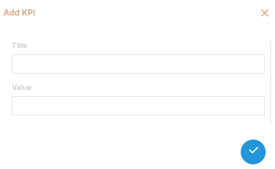
 to open the “Add KPI” dialog box.
 -
Enter the latest KR value :
-
Save the entry to update the performance trend
✅ Summary
The Performance Management Studio gives program managers a powerful way to track, update, and visualize the progress of Key Results in real time.