
Overview
The Program Spend Exercise is a critical process for tracking actual incurred expenses at the program level. It captures cross-cutting costs such as shared services and overheads, ensuring that spend remains aligned with the allocated budget and supports financial accountability.
AIZOPlan is built on Lean Budgeting principles and uses Value Increments as the core planning and funding cadence at the Program Level.
As a result, funds must be allocated per Value Increment, and actual spend should be recorded at the end of each Increment.
This approach allows program managers to compare available funds against actual expenditures and ensuring agile, data-driven budget control.
This article provides step-by-step instructions on how to enter and review Program Spend using the Budget Studio.
🏷️Enter Program Spend
Step1. Open Budget Studio
-
Navigate to your Program Office
-
Click the “Budget Studio” icon


Step2. Select the Program
-
Select the portfolio that contains the program, then choose the relevant program for which you want to record the spend.
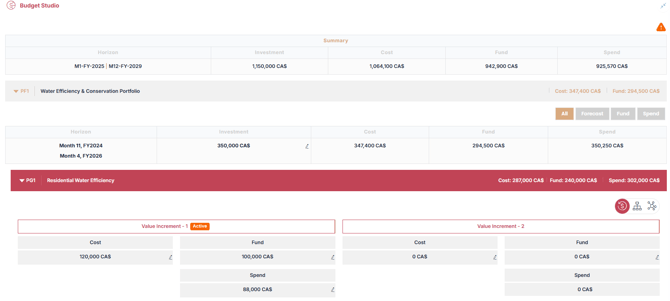
- In the header bar displaying the relevant program name, you can view:
- Cost : represents the total forecasted expenses for the entire program across all Value Increments.
- Fund : refers to the total amount of financial resources allocated to the program.
- Spend : the cumulative sum of all actual expenses recorded for the program, including both: Program-level spends (e.g. shared services, overheads) and Project-level spend from all projects within the program
Step3. Choose the Value Increment
- Select the active Value Increment that has just ended or is in review.
- This ensures the spend is linked to the correct planning cycle
Note ⚠️ : Once a Value Increment is closed, it becomes read-only—you cannot modify its spend data.
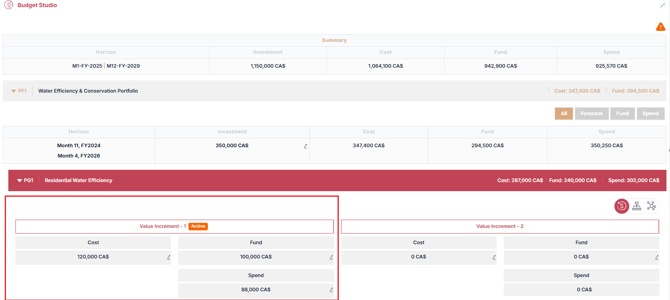
Step4. Open the Spend Entry form
-
Click Edit icon
 next the Spend Box to open “Edit Spend Details” for the selected increment and click
  to add a new item.
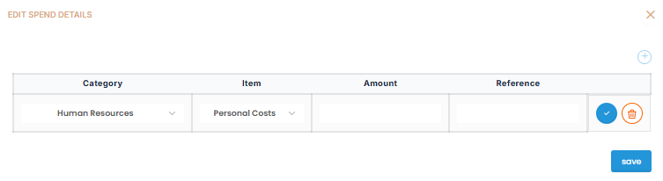
Step5. Add Spend Details
Fill the required fields to record actual program expenses:
1. Select Spend Categories and Items- Human Resources : Personnel cost, consultant fees, recruitment expenses
- Technology : Personnel cost, consultant fees, recruitment expenses
- Marketing & Communication : Digital marketing, content creation, public relations
- Operational Expenses : Travel, accommodation, office supplies, legal & compliance
- Other : Any additional spend not covered above
2. Enter the amount spend per item
3. (Optional) Add a reference or note for documentation purposes
4. Click  to Save the record. Add additional spend entries if needed.
Note : Any spend related to individual projects within the program should be recorded separately in the Project Canvas. See Article how-to-manage-your-project-spent-using-the-project-canvas-
🧾Review Program Spend
1. View Program Spend history
- Click on the Spend History icon
 to view all recorded spends per Value Increment for the selected program

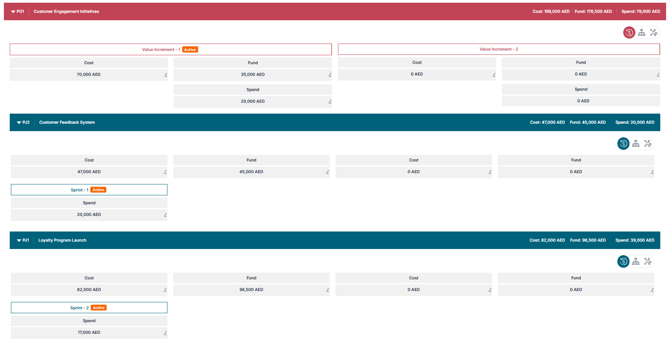
2. View Spend for the program and associated projects
- Navigate to visualize actual spend, Forecasted Cost, allocated Fund for both the program and its associated projects, giving you a consolidated view of financial performance across the entire program.
✅ Summary
The Budget Studio allows program managers to accurately enter program-level expenses—such as shared services and overheads—and review consolidated spend across both the program and its associated projects.
In addition to spend tracking, Budget Studio also supports forecasting and funding activities.
See the related article how to manage Program Costs and Funding using the Budget Studio