
Overview
Portfolios help structure your strategic initiatives by grouping related programs and projects under a shared vision.
In AIZOPlan, you can create a Portfolio Backlog in three ways:
-
Manually using Direct Mode
-
Through the Digital Maturity Assessment Stepper
-
Using the Lean Portfolio Management Stepper
This guide walks you through how to Create and Update a Portfolio Manually using Direct Mode, ensuring continuous alignment with your strategic goals and execution priorities.
 Create a Portfolio
You can create a new Strategic Portfolio directly using Direct Mode in the Portfolio Studio. This allows you to define high-level initiatives and structure them according to business strategy.
1. Access Portfolio Studio
Option 1: From the main menu, navigate to Portfolio > Develop > Portfolio Studio
Option 2: Open the Portfolio Studio directly from the Portfolio Office.
2. Start Development
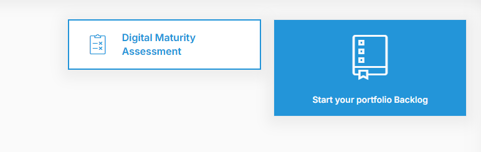
Click on Start your Portfolio Backlog and confirm  to begin your Portfolio setup.
3. Define Portfolio Details
Click Add  and choose Direct Mode.
In the Develop Portfolio dialog box, fill in the following:
-
Title: Provide a clear and concise name for the portfolio.
-
Description: Describe the portfolio’s purpose, scope, and strategic relevance .
-
Type: Select a category (Strategic Initiative, Strategic Capability, Solution).
-
Size: Choose the appropriate size. Click the info icon (i) for guidance.
-
Dates: Set estimated start and end dates.
-
Estimated Budget: Indicate the projected budget range.
-
Owner: Assign a Portfolio Owner responsible for execution and oversight
Click Validate to save your portfolio.
4. Refine Your Portfolio:
To further define your portfolio:
- In the Project Backlog, locate your portfolio and click Edit
 .
. - Complete the following fields:
🔗 Strategic Alignment
-
- Strategic Goals: Link the portfolio to strategic goals.
Assign a percentage of contribution for each goal (must total 100%).
- Strategic Goals: Link the portfolio to strategic goals.
📊 Additional Attributes
-
- Impact: Define the expected impact (Very Low to Very High).
- Priority: Set the priority level (Low, Medium, High).
- Complexity: Indicate complexity level (Very Low to Very High).
- Budget: Update or confirm the estimated budget.
📋 SAFe Portfolio Canvas (Optionnal)
If you’re applying the SAFe Portfolio Canvas framework, complete the following fields:
-
- Value Stream: Build the systems and capabilities that enable business process in an operational value stream.
- Solutions: Each Development Stream builds multiple products, solutions, services and systems that are used in operational value stream.
- Customers: Identifies both internal and external customers for each development value stream.
- Channels: Describe the way the products and services are delivered to customers. For example, Sales through web portal, sales through brick-and-mortar store, direct sales.
- Customer Relationship: Type of relationship that is essential with customers to apply and leverage products and services of business.
- Key Partner : All the partners like buyers, sellers, business alliances are identified, listed.
- Key Activities : All the important actions that the Portfolio executes to deliver value.
- Key ressource : Critical resources connected to physical, financial, intellectual and human.
- Business justification: Revenue streams and Cost structure.
💡 Tip: AIZO can assist in developing SAFe Portfolio Canvas elements using AI-based insights.
✏️ Update a Portfolio
You can update an existing Portfolio at any time to reflect strategic changes, new financial inputs, or project alignment.
Step 1: Access Portfolio Office
- From the main menu, go to Portfolio > Portfolio Office
- Locate the Portfolio you wish to update in Portfolio Backlog.
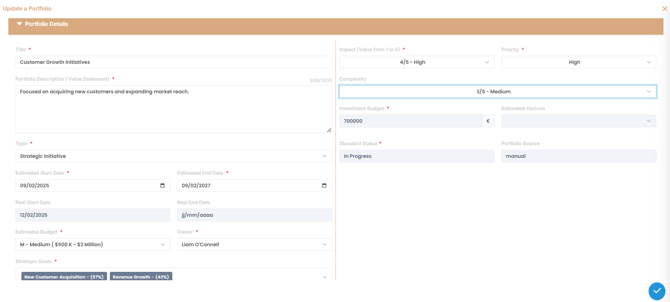
- Click Edit to open the Portfolio details.
Step 2: Make Key Updates
You can modify the following fields:
-
Title or Description: Refine for clarity or scope changes
-
Dates: Adjust start/end dates as plans evolve
-
Owner: Reassign based on governance updates
-
Priority: Reflect shifting strategic importance
-
Budget: Modify based on revised planning or approvals
-
Strategic Objectives: Link or unlink goals for alignment
-
Associated Programs or Projects: Add or remove as needed
Click Validate to confirm and save your changes.
You can also Update SAFe Portfolio Canvas details if needed to edit or add any other strategic components to reflect the latest business context.
🔁 Ongoing Management
Regularly reviewing and updating your Portfolios ensures that your strategic plans remain responsive to change. Use related tools like:
-
Investment Planning to manage financial settings : How to Use the Investment Planning Module in AIZoPlan: A Quick Start Guide
-
Strategy Studio to refine goals and outcomes
-
AIZO for AI-driven recommendations and automation
✅ Summary
Creating and updating Portfolios in AIZOPlan ensures that your organization stays strategically focused and operationally agile. By managing both structure and funding in alignment with Lean Portfolio Management principles, you can continuously prioritize the highest-value initiatives and optimize your portfolio's impact.