
Overview
In AIZOPlan, projects typically begin as qualified demands and follow a structured lifecycle before becoming executable and entering the Portfolio Backlog.
However, you can also manually add an ongoing project — for example, to track an initiative that’s already in progress outside the standard demand cycle.
Project Studio is your central workspace for managing project execution, tracking project data, and visualizing delivery timelines.
Whether your project originates from a demand or is already underway, Project Studio helps you stay organized, aligned, and focused on strategic delivery.
📌Access the Project Studio
- Option 1 : Go to Project → Develop → Project Studio
- Option 2 : Open the Project Studio directly from the Project Office.
📌 Explore the Project Backlog
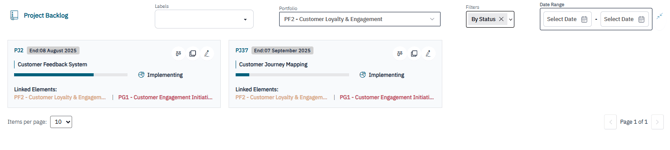
When you open Project Studio, you'll land on the Project Backlog, which displays all approved and ongoing projects.
You can filter the list by:
-
Portfolio
-
Project Owner
-
Status
-
Team
-
Date Range
-
Labels
These filters help you focus on the most relevant projects for your role or reporting needs.
➕ Add a New Project
To add an ongoing project:
-
Click Add

-
Complete the required fields like :
-
Portfolio – Link the project to the appropriate strategic portfolio
-
Program – Associate the project with an existing program (if applicable)
-
Investment – Enter the allocated budget or investment amount
-
Once saved, the project appears in the backlog and can be fully managed like any other project.
👉 Learn how to add an ongoing project in AIZOPlan
🛠 Manage Projects via the Project Canvas
Every project in the backlog has its own Project Canvas, where you can manage key aspects of project execution:
🔹 Project Description, Details & Prioritization
Define the scope, objectives, and strategic alignment of your project.
🔹 Implementation Plan
Break down the work into workstreams, define deliverables, assign owners, and link activities to sprints.
👉 How to create a Project Implementation Plan
🔹 Timeline
Visualize the full project schedule and track major milestones using the built-in Gantt-style view.
👉 How to visualize the Project Timeline
🔹 Team Kanban Board
Manage tasks in real-time with a visual Kanban board, organized by team or delivery stream.
🔹 Performance & Execution Tracking
Monitor key performance indicators:
-
Spend usage
-
Cost Performance Index (CPI) and Schedule Performance Index (SPI)
🔹 Risk Management
- Document and track project risks throughout execution.
✅ Summary
Project Studio offers a centralized view of your project execution lifecycle — from initial planning through to delivery.
By connecting execution with strategic intent and providing real-time visibility into performance, Project Studio helps teams stay aligned, agile, and accountable.